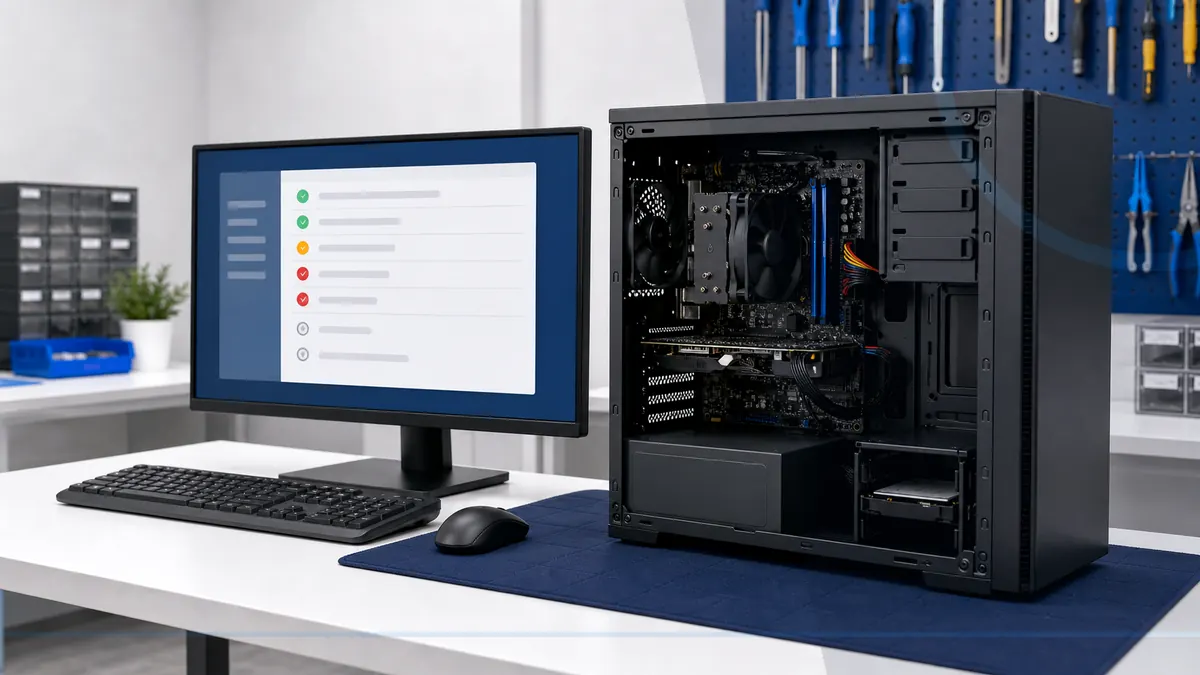
What To Do When Your Computer Will Not Turn On
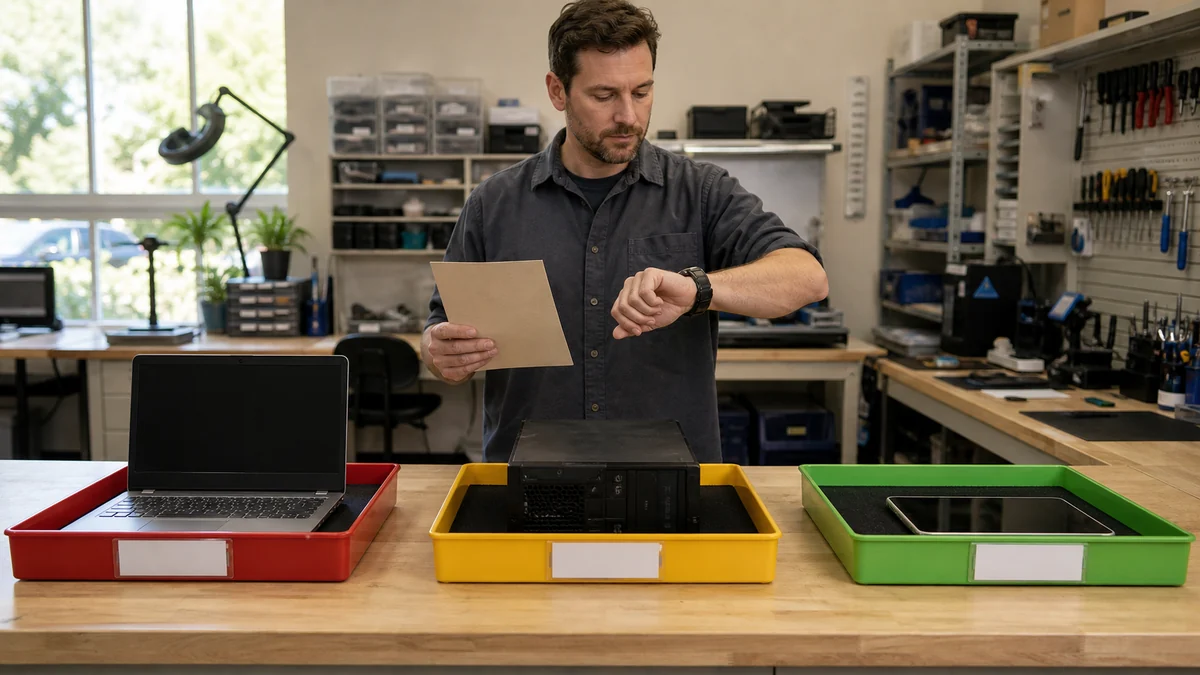
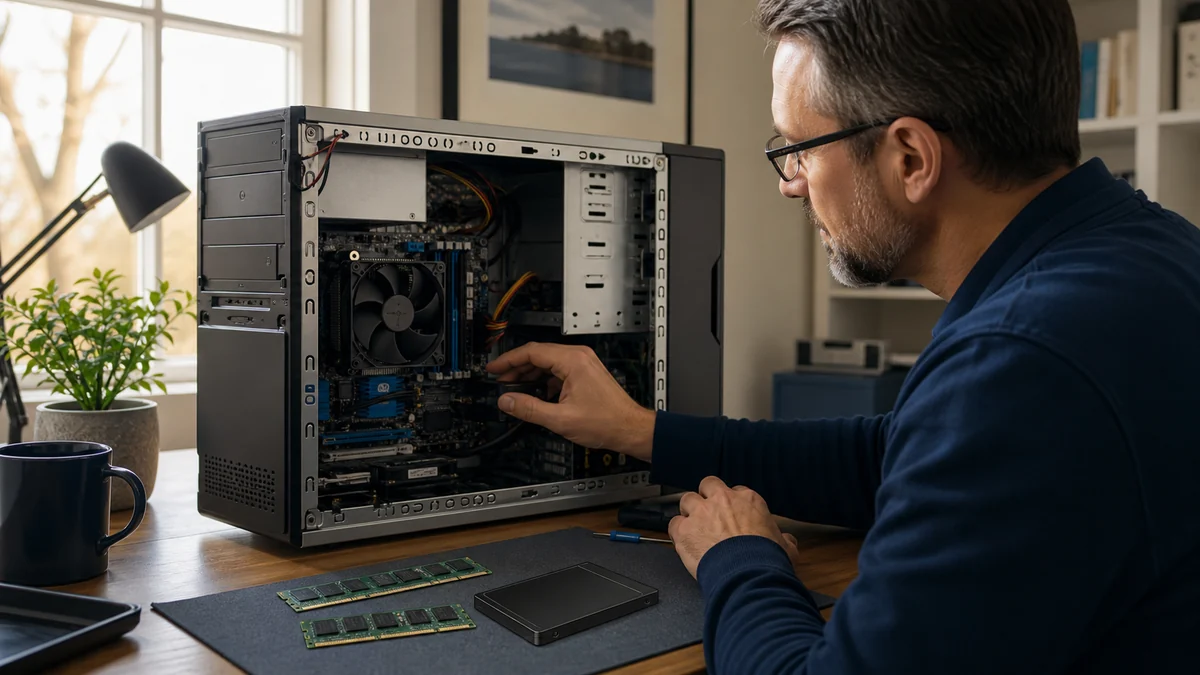
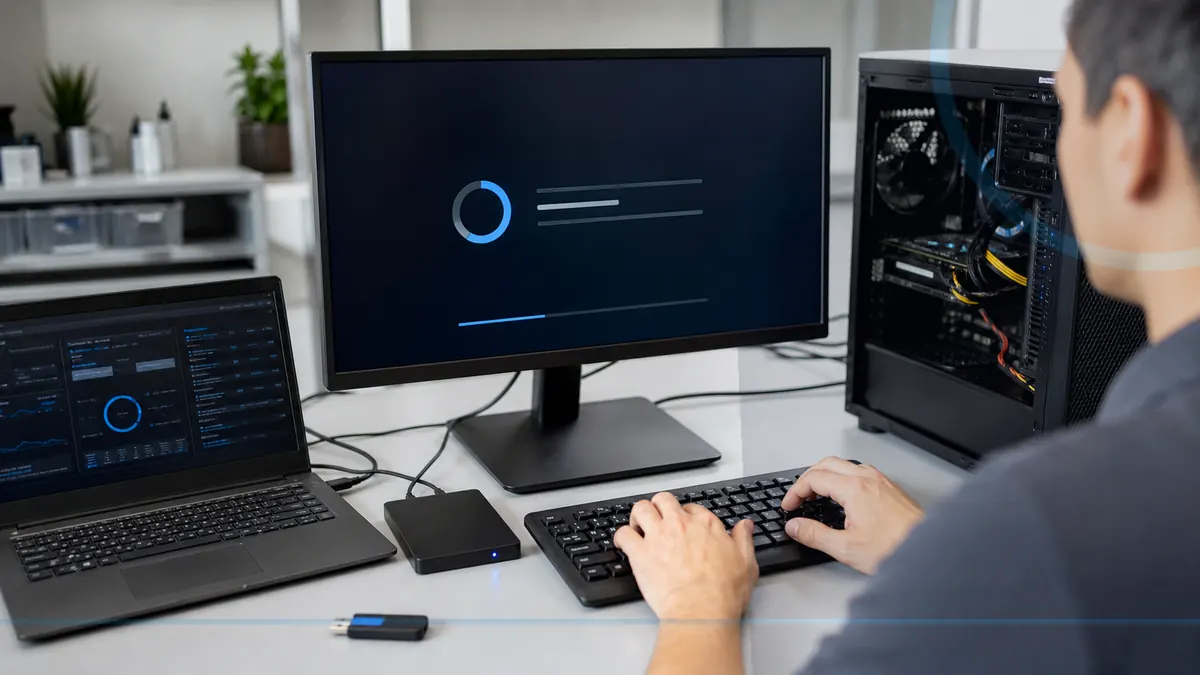
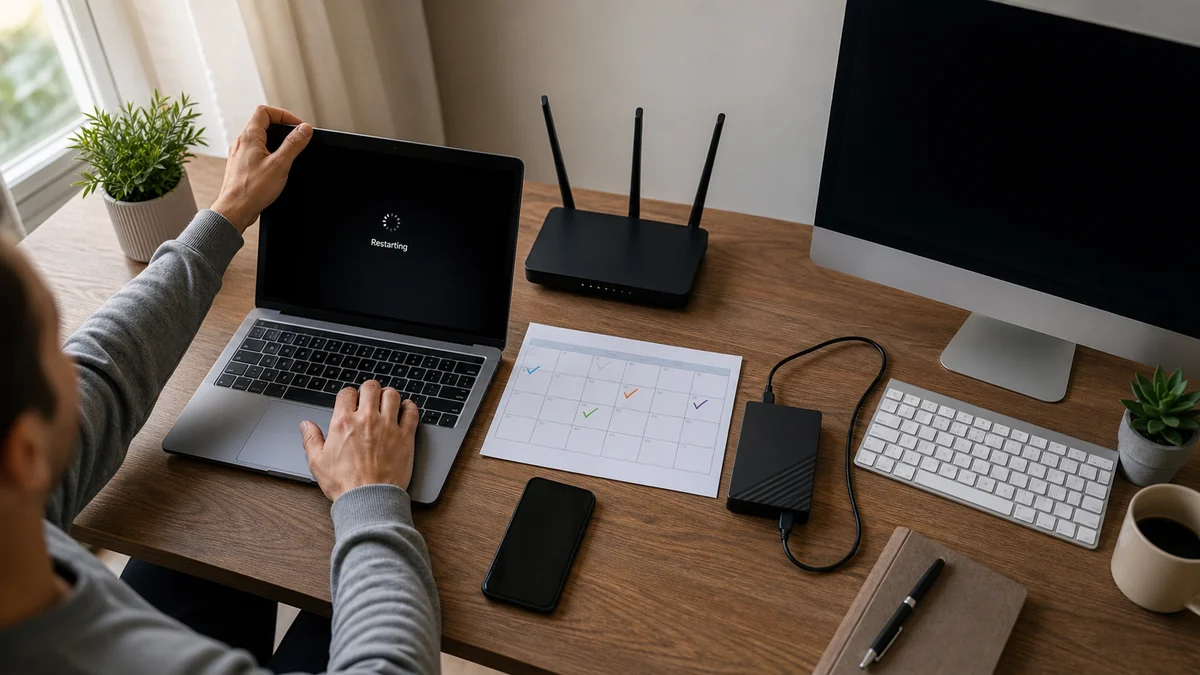
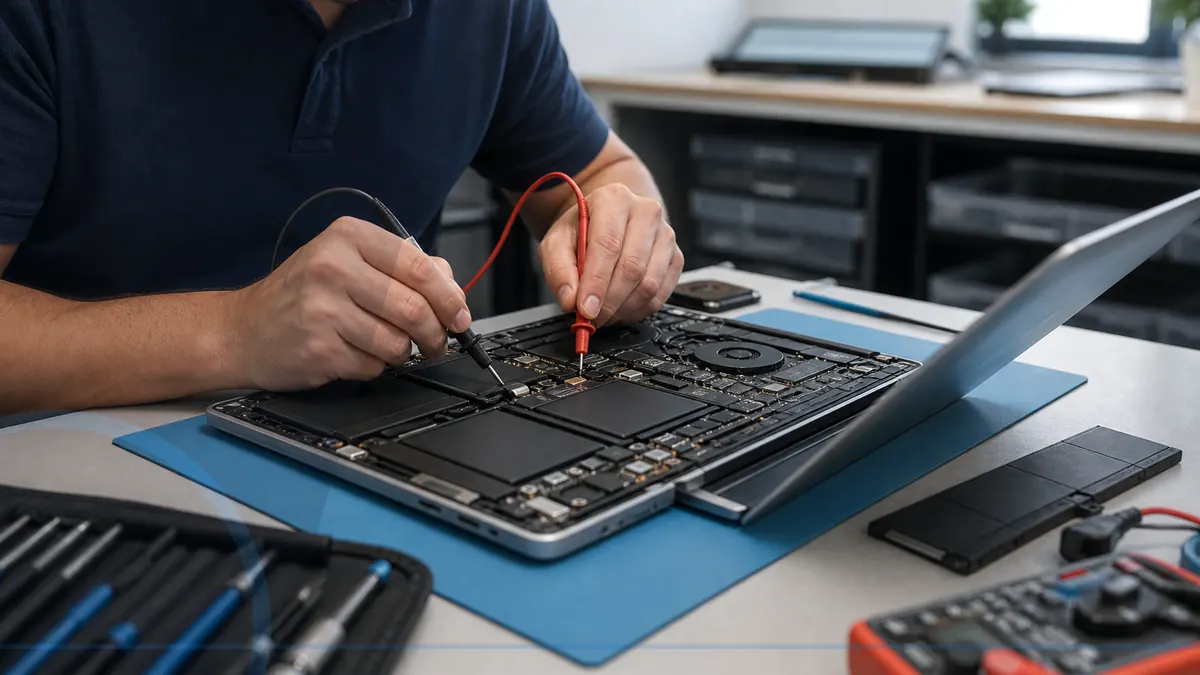
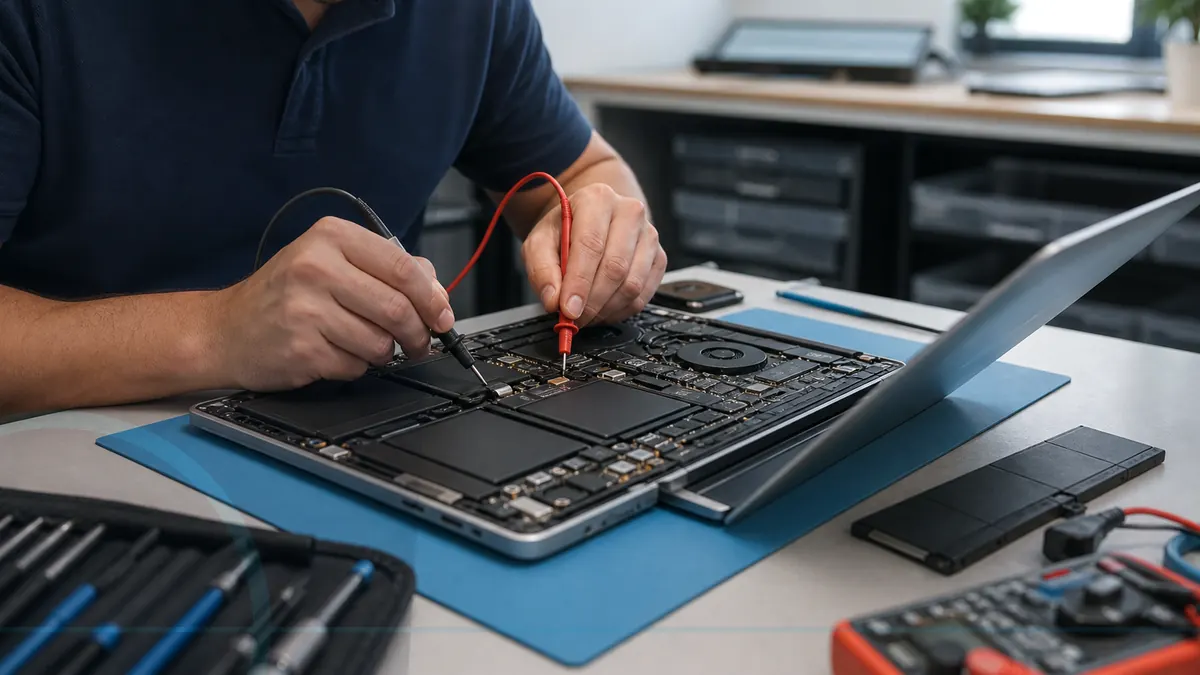
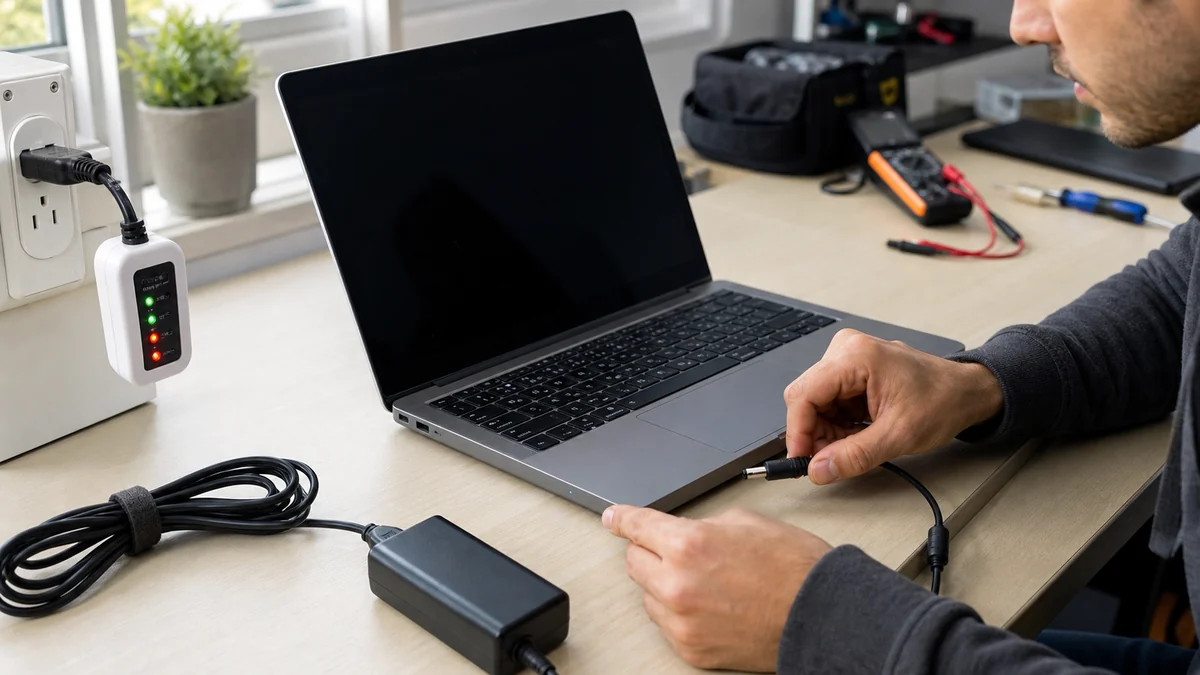
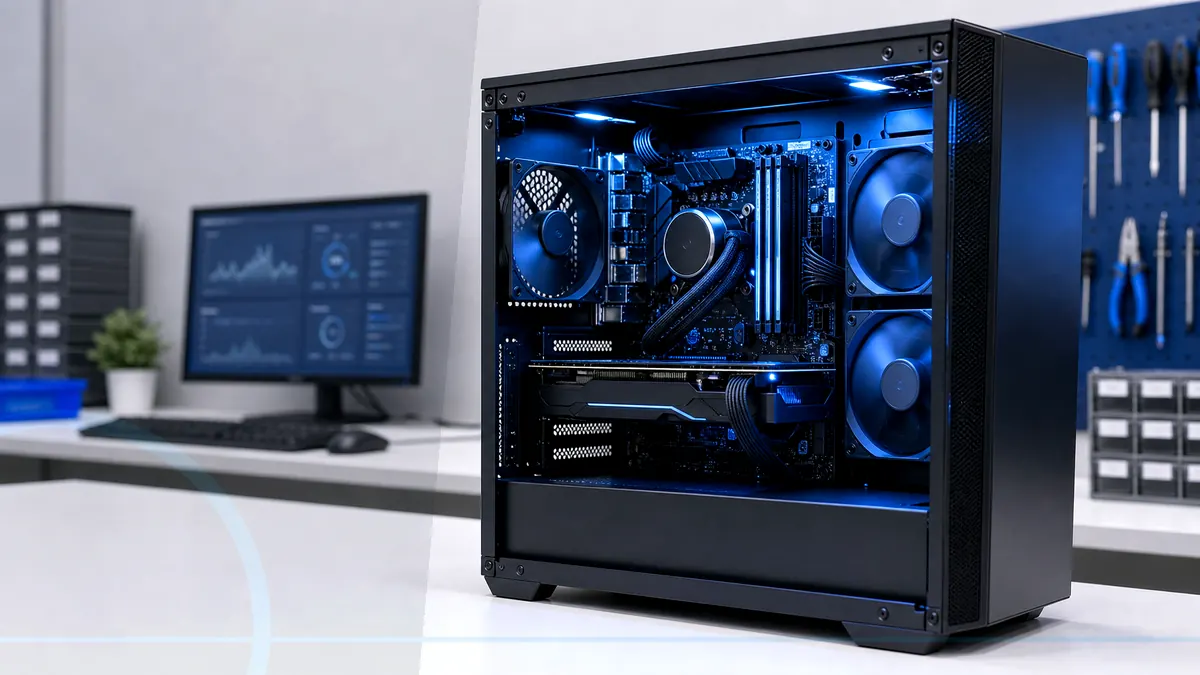
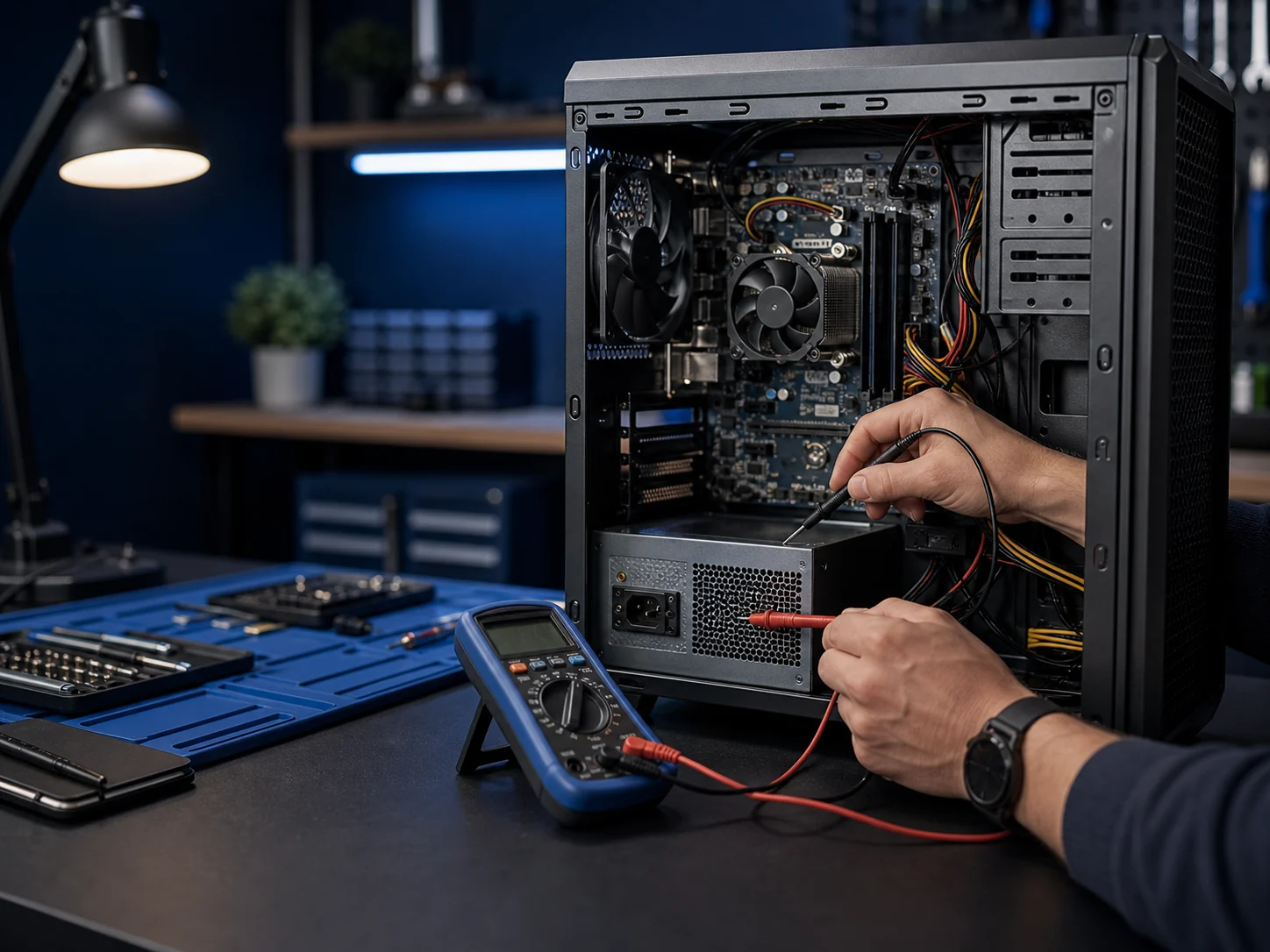
A no-power computer may have a simple connection problem, a failed power supply or charger, a battery issue, or a deeper hardware fault.
Read the guidePractical, plain-English articles for computer failures, phone and tablet concerns, console problems, scams, cybersecurity, backups, home technology, and small-business IT.
Each shelf begins with three guides on desktop and becomes a swipeable row on smaller screens. Use the arrows for more articles or open the complete category.
Computer performance, failures, maintenance, and repair decisions
A no-power computer may have a simple connection problem, a failed power supply or charger, a battery issue, or a deeper hardware fault.
Read the guideAn SSD can make a compatible computer feel much more responsive, but it does not fix every cause of poor performance or make unsupported hardware current.
Read the guideRepair time depends on diagnosis, parts, data risk, software setup, testing, current workload, and whether an intermittent problem can be reproduced.
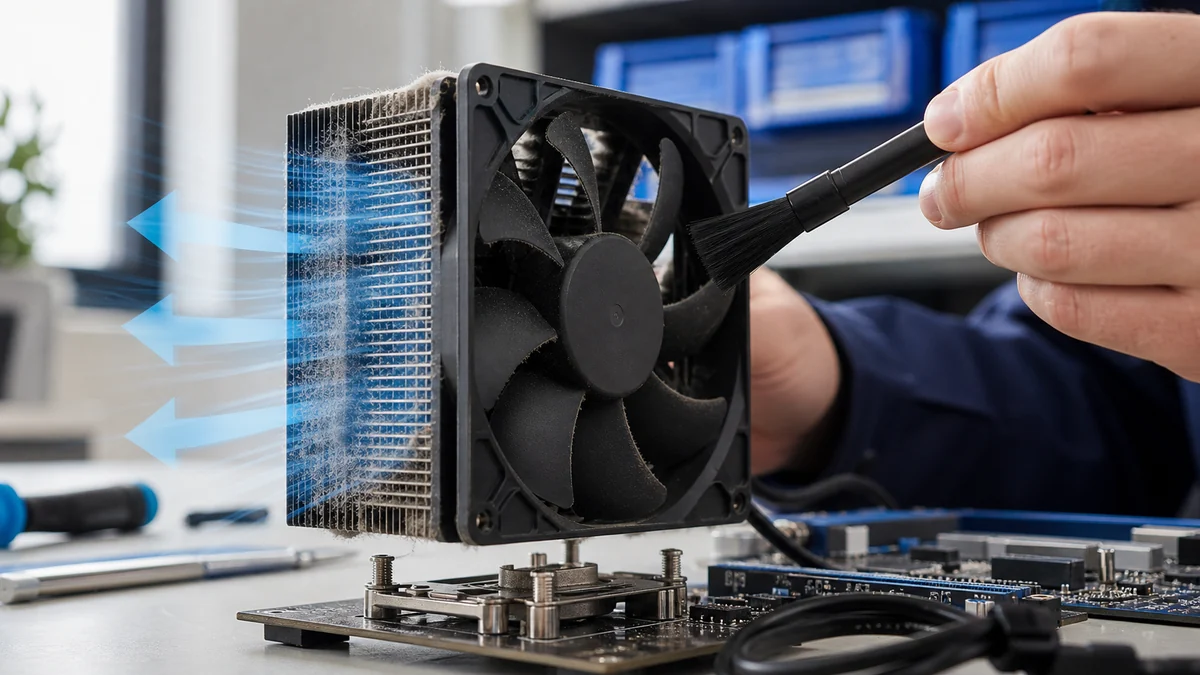
Read the guideLoud fans can signal dust, blocked airflow, heavy background work, aging cooling parts, heat, or a component under sustained load.
Read the guideRemote support is useful for many software, account, update, and setup problems, but it cannot physically repair a damaged device.
Read the guideAn older computer may benefit from maintenance, an SSD, memory, a clean setup, or fewer background programs, but every upgrade has limits.
Read the guideWindows updates, startup problems, setup, and recovery
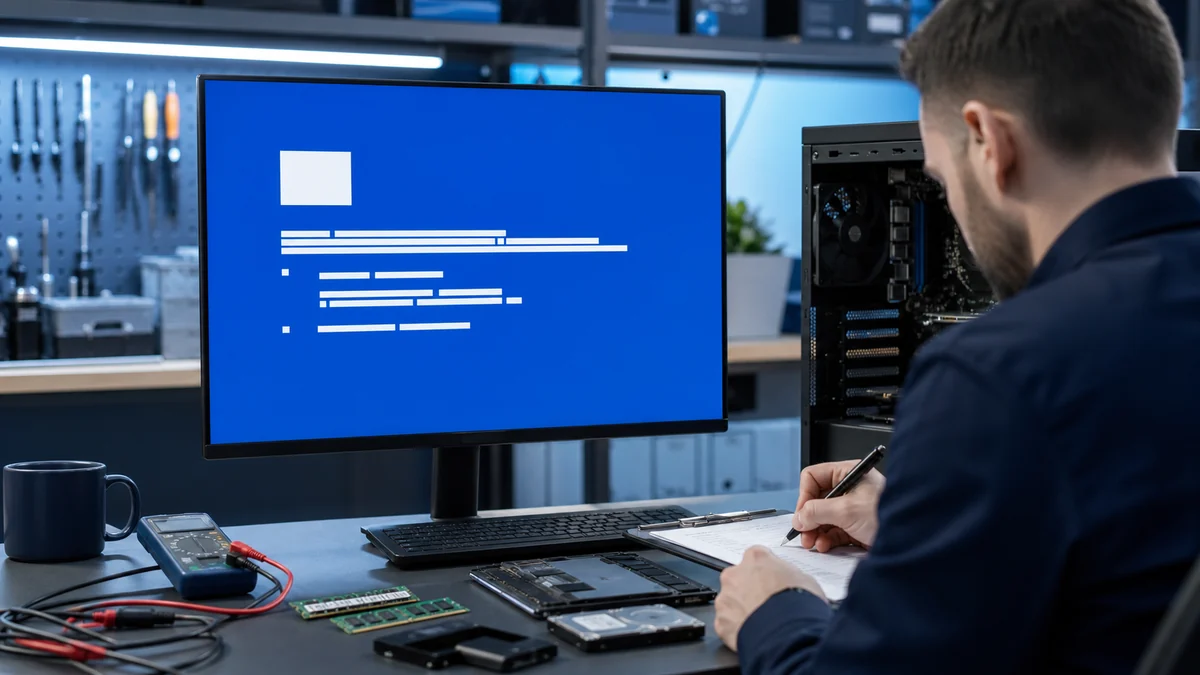
A Windows blue screen is a protective stop caused by a serious driver, memory, storage, heat, software, or hardware problem.
Read the guideA careful new-PC setup protects accounts and files while avoiding unnecessary software, rushed data transfers, and forgotten recovery details.
Read the guideWindows 11 readiness depends on supported hardware, firmware security features, storage, memory, application needs, and a backup plan.
Read the guideOperating systems, browsers, security tools, and common applications should be checked regularly because updates fix reliability and security problems.
Read the guideWindows updates can fail because of low storage, damaged files, driver conflicts, interrupted downloads, or a deeper hardware problem.
Read the guideCharging, batteries, screens, heat, and portable-computer care
Laptop heat can come from blocked vents, dust, failed fans, damaged cooling parts, heavy background work, charging issues, or a workload the design cannot sustain.
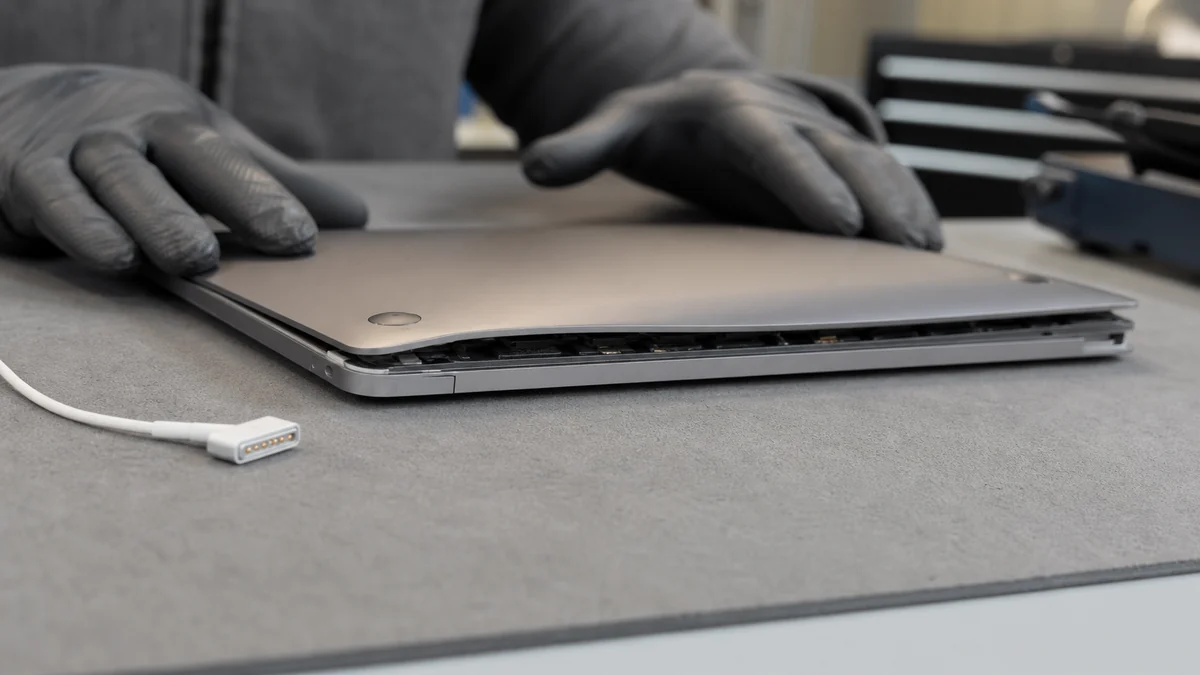
Read the guideA swollen battery may lift the keyboard, trackpad, or case and should be treated as a safety issue rather than a cosmetic inconvenience.
Read the guideUseful laptop repair questions cover diagnosis, data risk, parts, testing, timing, total cost, and whether the machine remains worth owning.
Read the guideThe charger, wall outlet, charging port, battery, internal power circuit, or software can each produce similar symptoms.
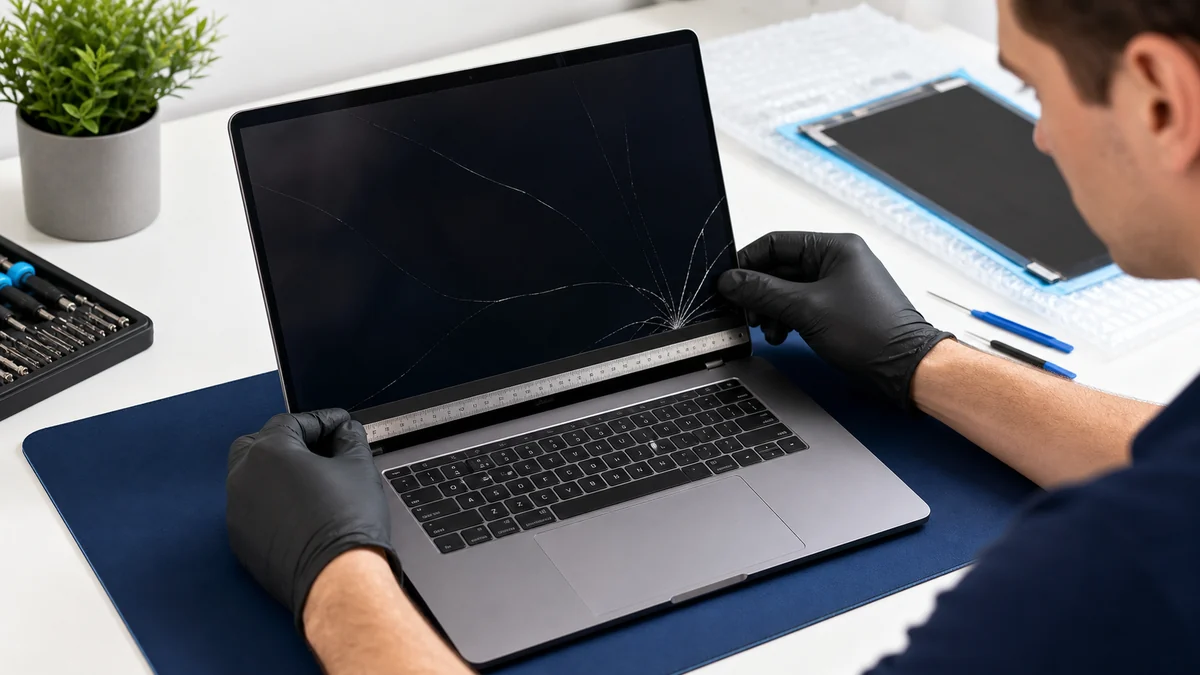
Read the guideA cracked panel is obvious, but a dark or flickering display can also come from a cable, graphics issue, backlight, hinge damage, or motherboard fault.
Read the guideGaming performance, cooling, stability, and upgrades
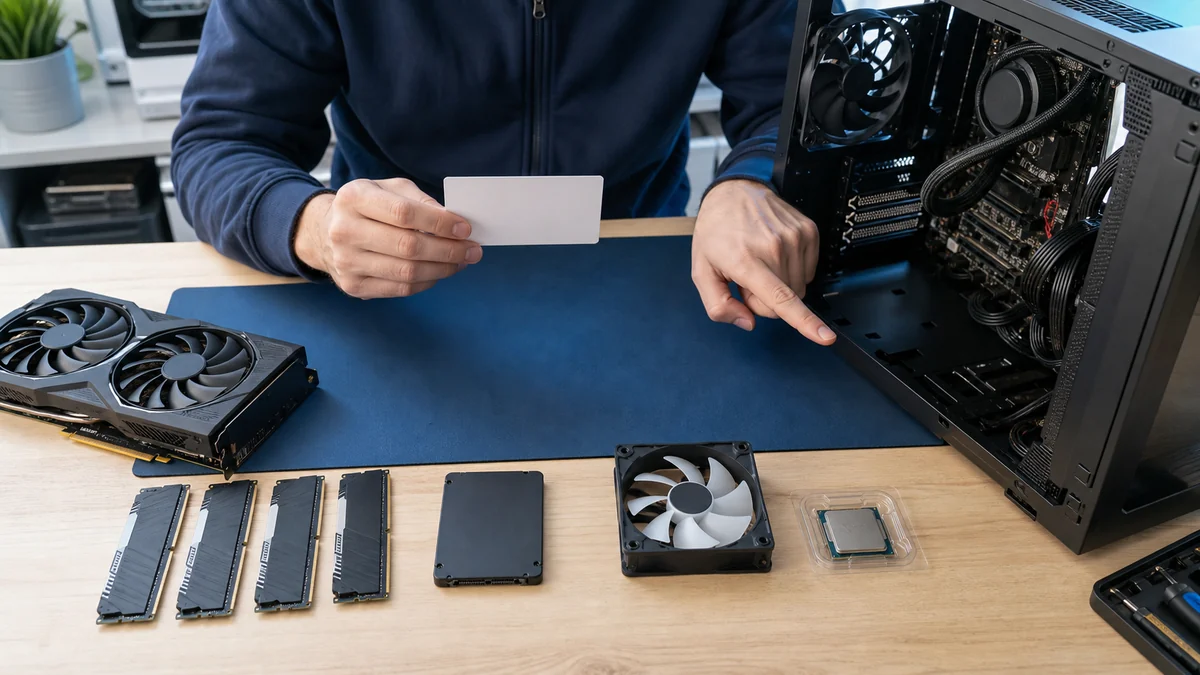
The best first upgrade depends on the games, monitor resolution, current frame rates, temperatures, component balance, and budget.
Read the guideA gaming PC that shuts down under load may be overheating, losing stable power, encountering a driver problem, or exposing a failing component.
Read the guideGaming crashes may involve drivers, memory stability, temperatures, power delivery, storage, game files, or an unstable overclock.
Read the guideStable gaming performance depends on clean airflow, sensible temperatures, current drivers, enough storage, and realistic graphics settings.
Read the guideHeat problems usually involve dust, poor airflow, failing fans, old thermal material, aggressive settings, or a cooler that does not match the hardware.
Read the guidePlayStation, Xbox, Nintendo, HDMI, power, and overheating
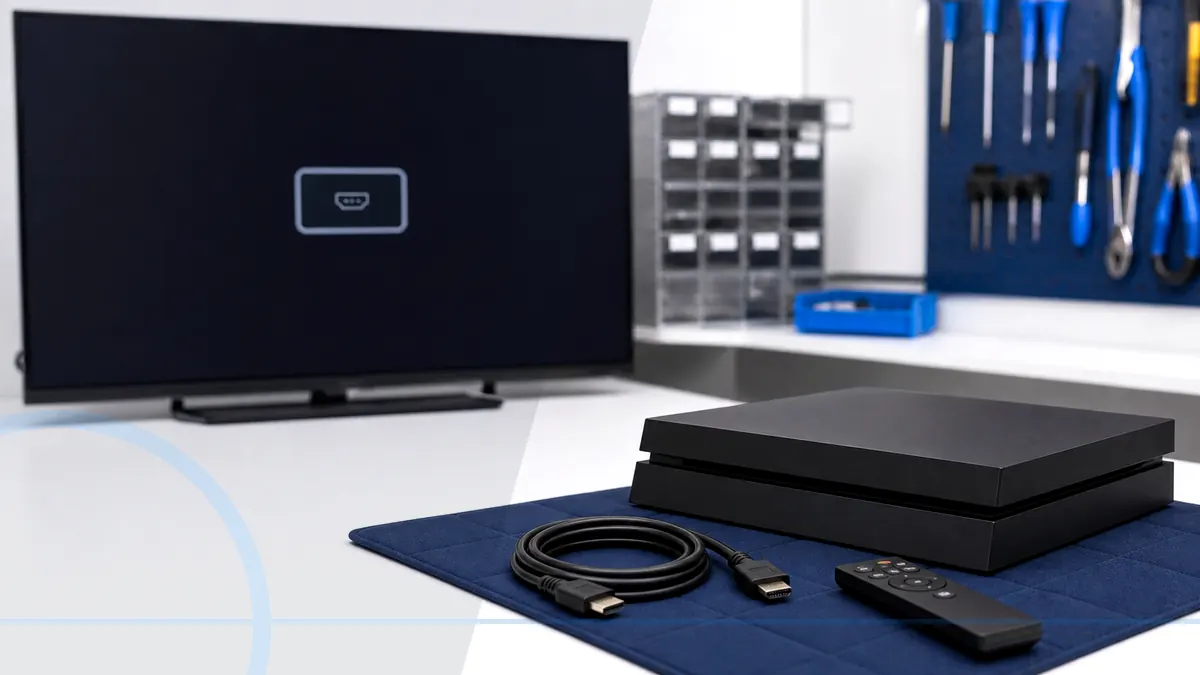
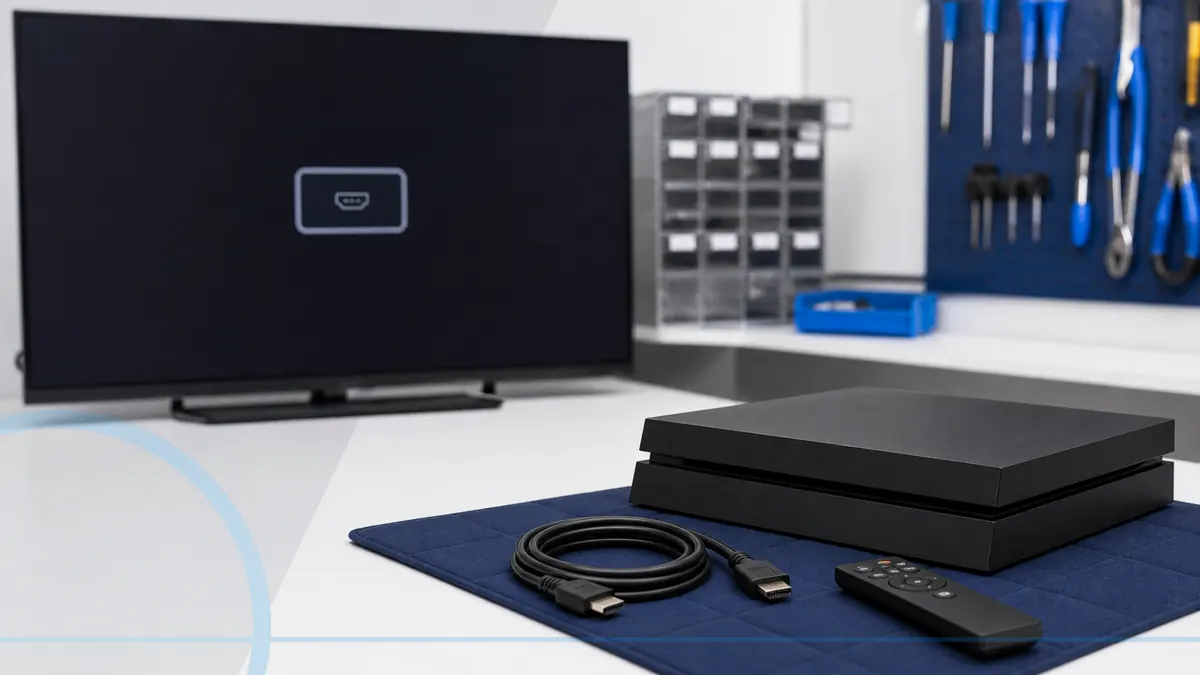
A PS5 no-signal problem can come from the television input, cable, display settings, damaged HDMI port, or another console video fault.
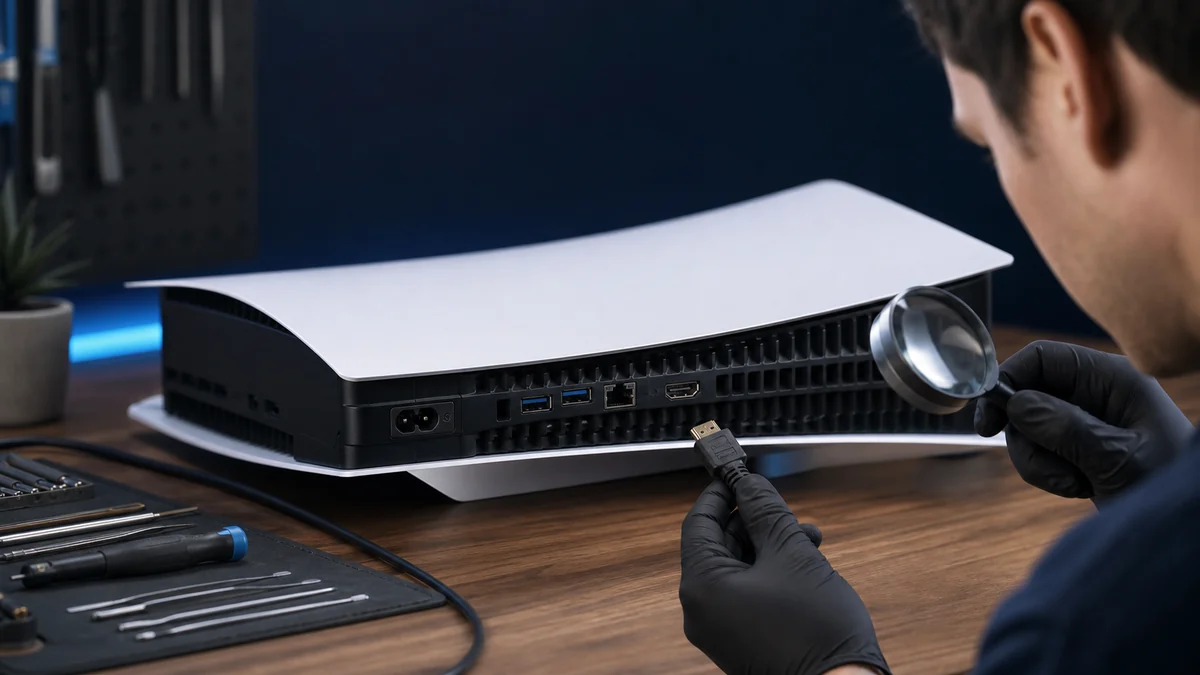
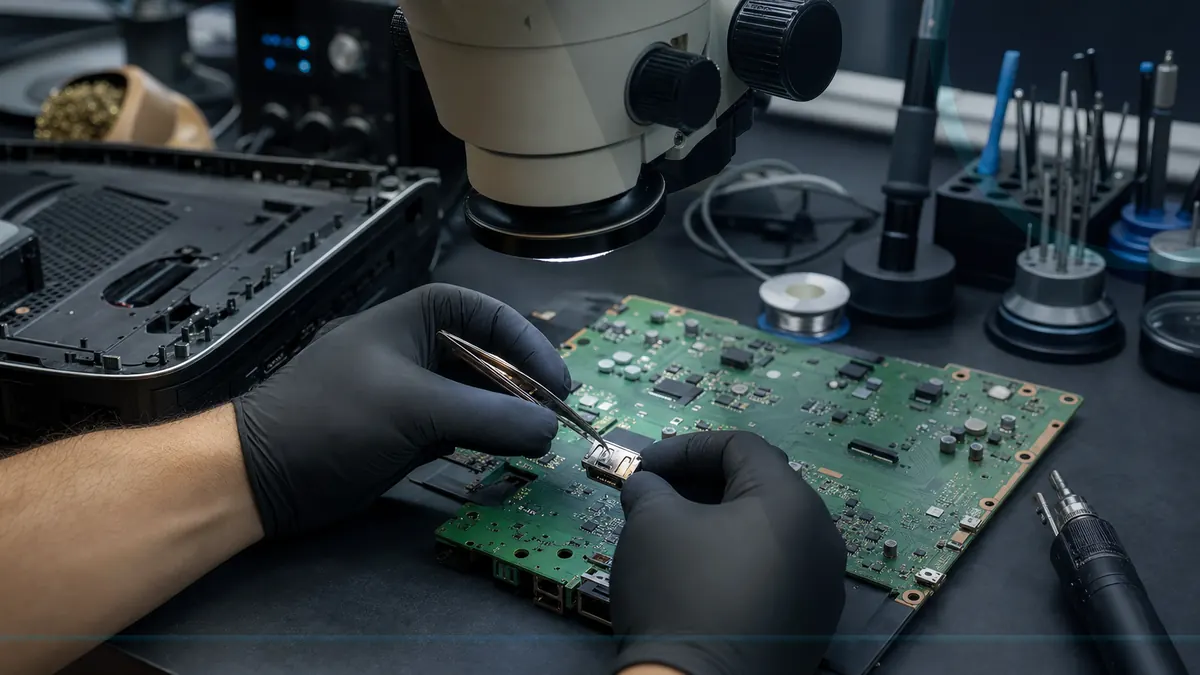
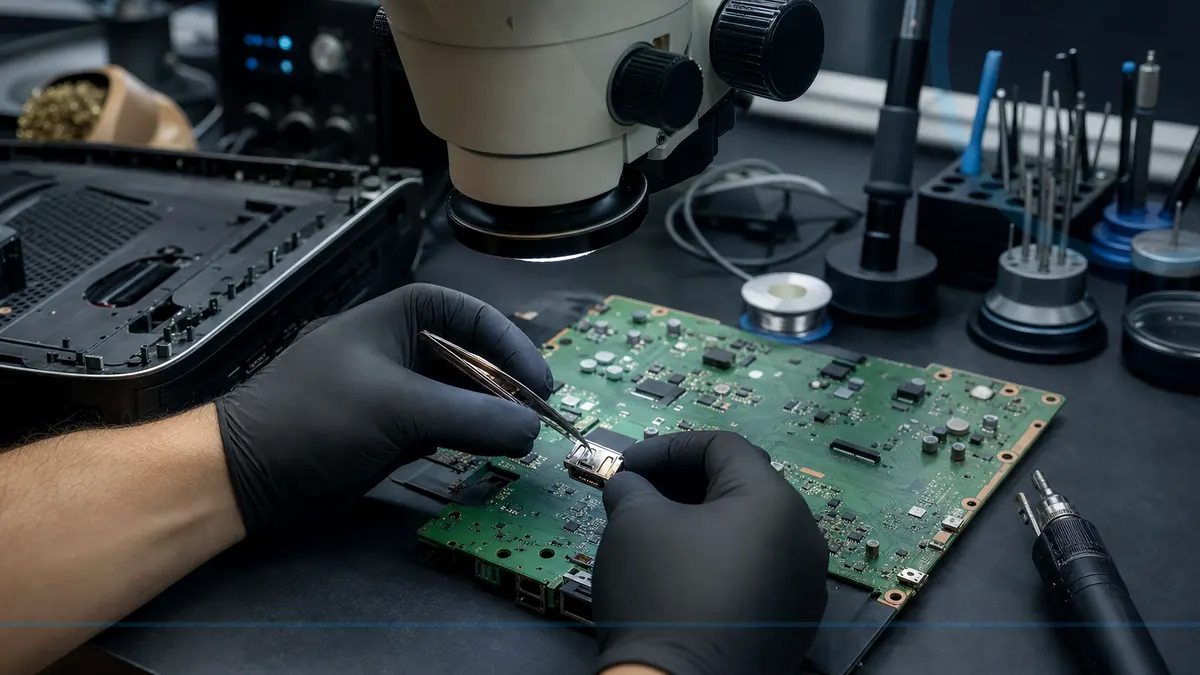
Read the guideLoose fit, bent pins, a pushed-in connector, flickering, and a picture that changes when the cable moves can point to physical HDMI damage.
Read the guideConsole repair value depends on model, age, damage, parts, storage, account access, replacement cost, and whether more than one system is failing.
Read the guideThe right accessories help reproduce console power, display, charging, controller, and dock symptoms without unnecessary guesswork.
Read the guideForcing or repeatedly wiggling a loose HDMI cable can bend contacts, lift connections, crack the port, or increase board damage.
Read the guideXbox no-picture and flickering symptoms can involve the cable, television input, display configuration, HDMI port, or internal video circuitry.
Read the guideScams, accounts, malware, safer habits, and incident response
A short routine helps catch neglected updates, low storage, failed backups, unusual account activity, heat, and physical wear.
Read the guideA short monthly routine catches neglected updates, low storage, failed backups, account alerts, and physical problems before they become emergencies.
Read the guideA slow computer can come from limited storage, too many startup programs, failing hardware, heat, malware, or simply an aging design.
Read the guidePop-ups, suspicious links, remote-access scams, exposed accounts, and malware response
The right response depends on whether you clicked, paid, shared a password, installed remote software, or gave someone control of the computer.
Read the guideA responsible malware appointment begins with the incident timeline and data risk before moving into cleanup, account guidance, verification, or reinstall decisions.
Read the guideSome ransomware warnings are fake browser pop-ups, while real ransomware may encrypt files or disrupt access. The first job is to avoid making the situation worse.
Read the guideRemote-access scams can expose files, saved passwords, email, financial accounts, and installed software, so closing the pop-up is only the beginning.
Read the guideFake support scams use urgent pop-ups, calls, emails, and search ads to convince people that a normal computer warning requires immediate payment or remote access.
Read the guideFake Microsoft support messages rely on urgency, frightening claims, phone numbers, and requests for remote access or payment.
Read the guideBackups, storage failure, transfer, and recovery planning
Before recycling a computer, protect personal data, preserve anything important, remove accounts, and use a reputable electronics recycling option.
Read the guideSelling a computer safely requires a verified backup, account removal, secure erasure, a clean operating-system setup, and honest disclosure of condition.
Read the guideCloud and external-drive backups solve different problems, and many households benefit from using both instead of depending on a single copy.
Read the guideGood recovery decisions begin with the affected device, a clear description of the failure, and a prioritized list of the files that matter most.
Read the guideA failing drive may become slow, disappear, report errors, corrupt files, prevent startup, or make unusual mechanical noises.
Read the guideFamily photos deserve more than one copy because phones, computers, cloud accounts, and external drives can all fail or be lost.
Read the guideOngoing household monitoring, reports, and safer computing
A home office computer needs supported software, secured accounts, reliable backups, sensible separation from household use, and a response plan.
Read the guideRegular reviews can reveal low storage, failed updates, missing protection, backup problems, heat, and aging hardware before several issues collide.
Read the guideA safer home network starts with a supported router, unique administrator access, current firmware, sensible guest access, and secured devices.
Read the guideRemote workers need backups that protect local work, clarify what the employer already covers, and can be restored without waiting for a crisis.
Read the guideCleanup is a good start, but account security, updates, backups, and safer habits determine whether the computer returns to dependable everyday use.
Read the guideAntivirus is one security layer, while managed protection adds update visibility, health monitoring, reporting, alert review, and a support relationship.
Read the guideMicrosoft 365, workstations, backups, security, and IT ownership
Delayed updates can leave office computers inconsistent, unsupported, unreliable, and harder to recover when a security or compatibility problem appears.
Read the guideReplacement planning should consider software support, reliability, repair history, security requirements, employee time, and whether the computer still fits the job.
Read the guideOne-at-a-time repair becomes less effective when nobody owns updates, backups, accounts, documentation, vendors, and recurring support across the whole office.
Read the guideRealtors handle contracts, identity details, payment conversations, mobile work, and urgent messages, all of which attract impersonation and wire fraud.
Read the guideFinancial professionals hold high-value identity and account information, so access control, patching, backups, and incident planning deserve special attention.
Read the guideChoose residential device help, business IT, or call Leon when you are not sure where to begin.