Start with the pattern, not a guess
Write down the exact Windows message and what changed before it appeared. Storage health, update history, drivers, user profiles, and recent software all influence whether a focused repair or a careful reinstall is appropriate.
Practical checks and decisions
Work from observation to one controlled change at a time. Stop when the next step could risk data, accounts, electrical safety, or additional hardware damage.
Restart and confirm storage and internet access
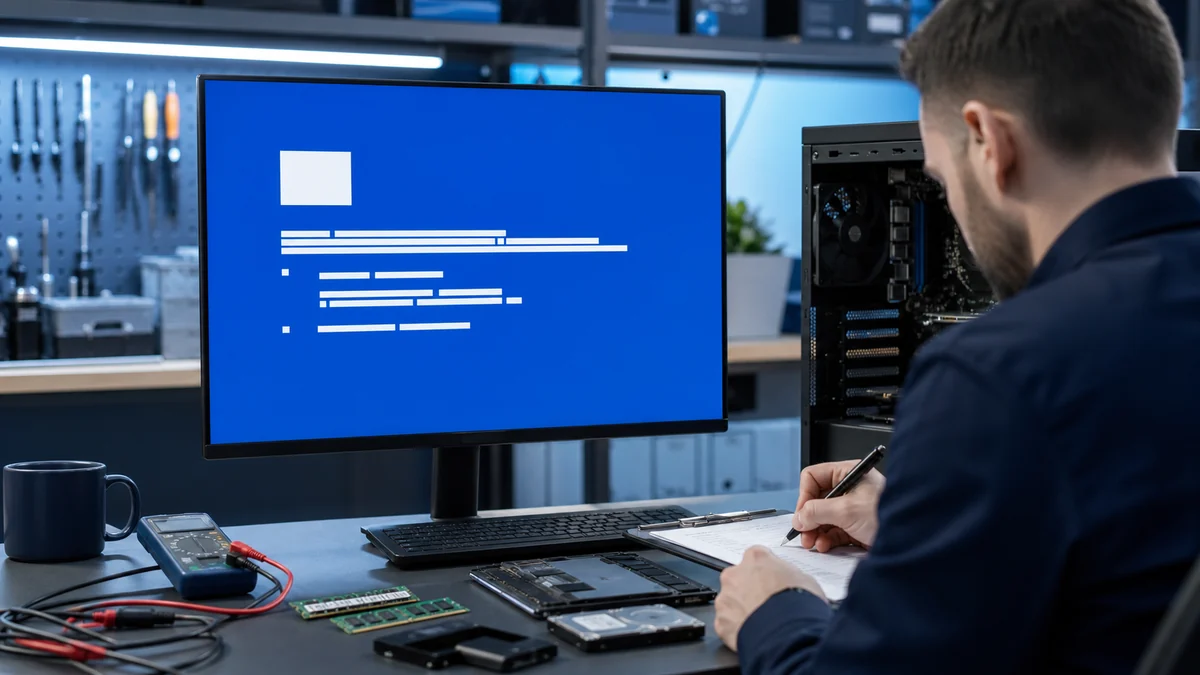
Record the exact Windows message, stop code, update name, driver, and the change that came immediately before the problem. Screenshots and dates are more useful than a guessed cause.
Record the update name and error code
Confirm free storage, stable power, and a current backup before repair commands, rollbacks, resets, or reinstalls. Use the least invasive reversible step first.
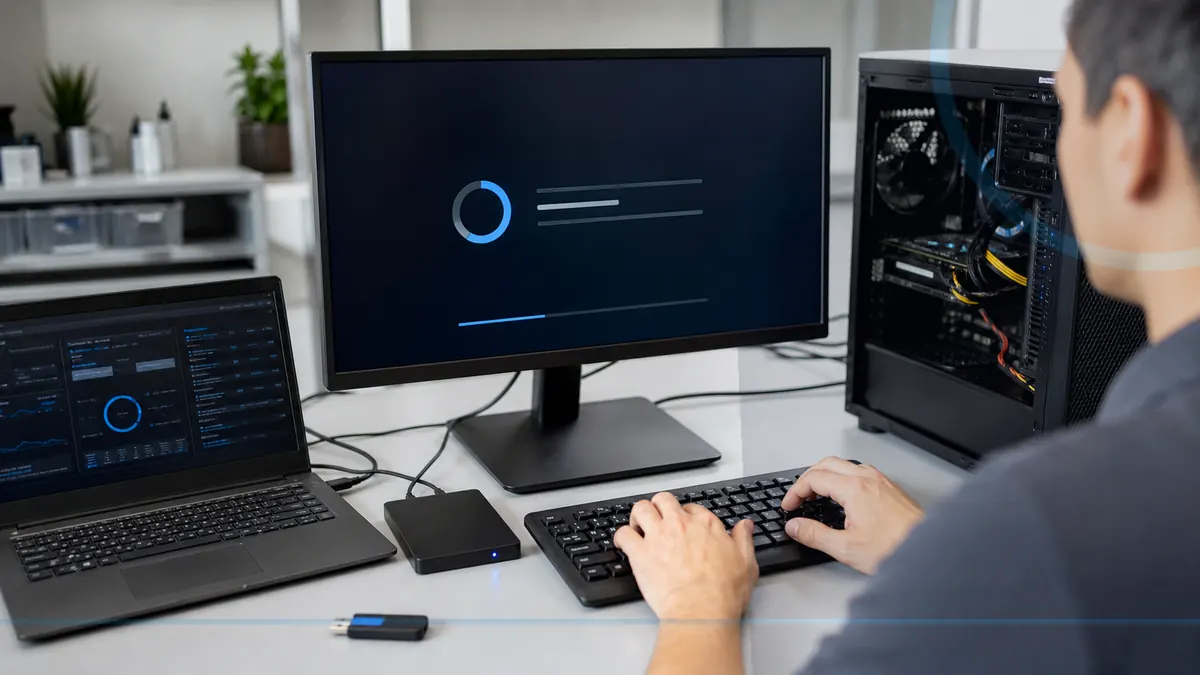
Avoid repeated forced shutdowns during installation
Change one Windows variable at a time, restart normally, and repeat the same task. A brief improvement after several simultaneous changes does not identify the cause.
Back up data before repair commands or a reinstall
Review update history, Device Manager, storage health, startup behavior, and the application that failed. Repeated update or boot failures may point to hardware rather than Windows alone.
When a professional diagnosis makes sense
Arrange diagnosis when Windows cannot start reliably, the same update or blue screen returns, storage health is uncertain, or the next step involves repair commands, resets, or a reinstall. Bring exact messages, dates, and a short change history.
For hands-on or remote help, explore the service options related to this issue, or browse the Help Center for another guide.