Start with the pattern, not a guess
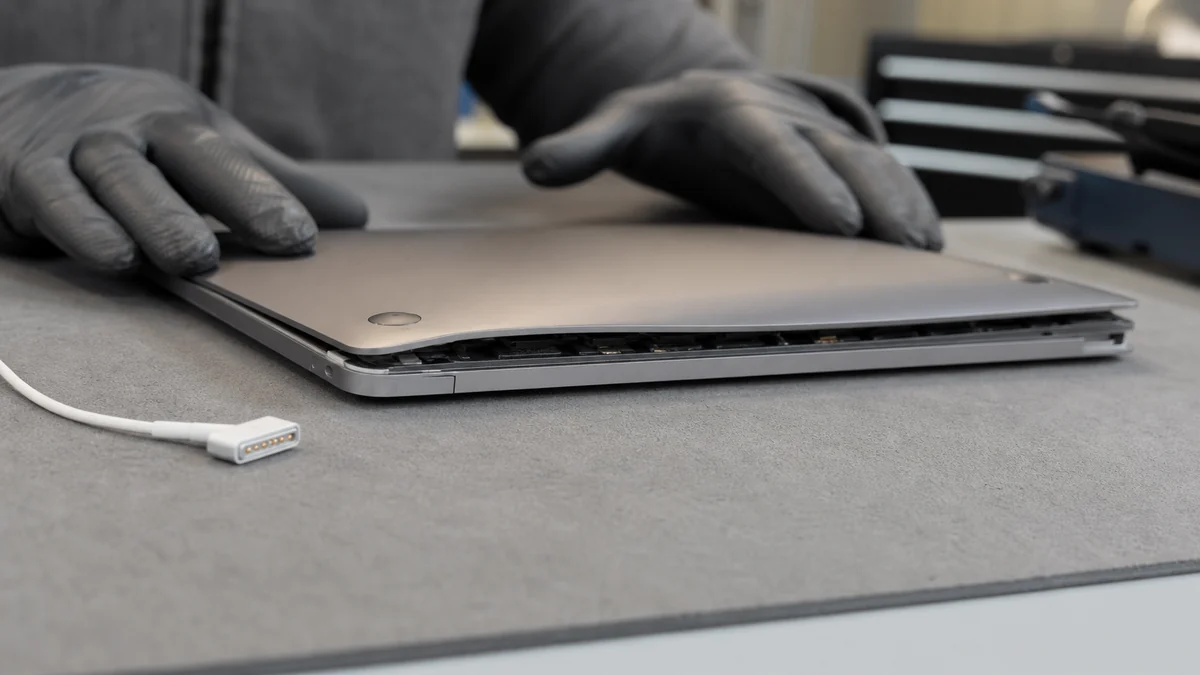
The exact laptop model, charger, battery behavior, indicator lights, heat, and recent physical damage matter. Avoid repeatedly flexing a hinge, forcing a charging plug, or continuing to charge a swollen battery.
Practical checks and decisions
Work from observation to one controlled change at a time. Stop when the next step could risk data, accounts, electrical safety, or additional hardware damage.
Use the laptop on a hard surface with open vents
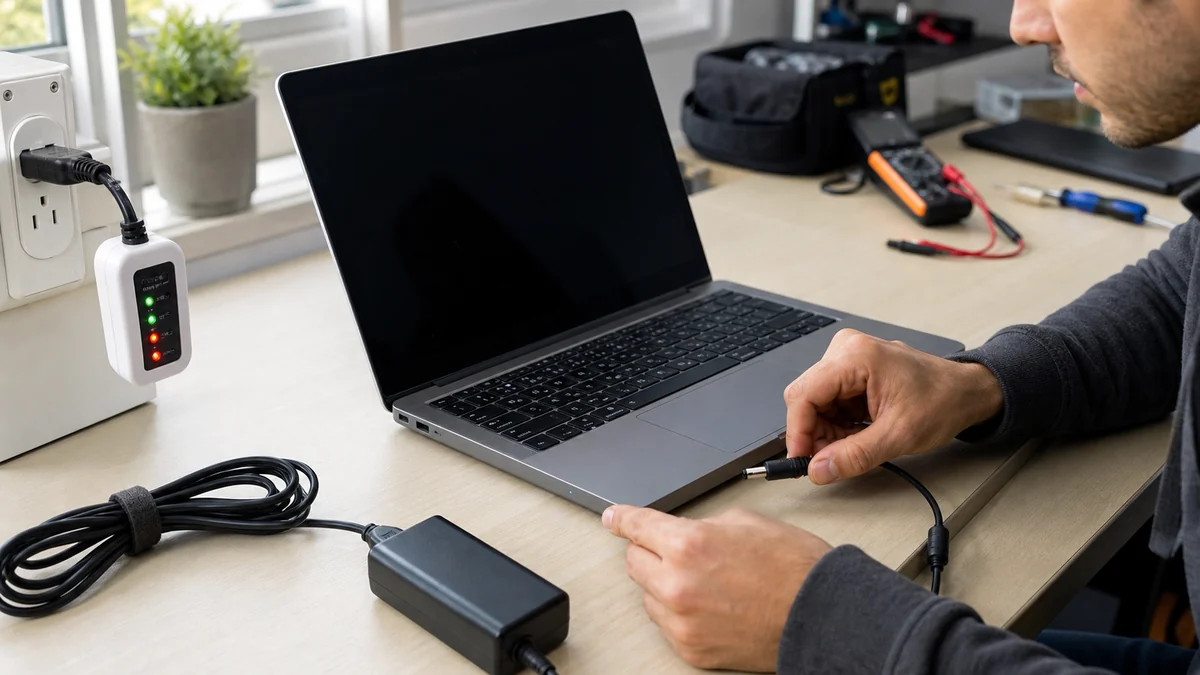
Record the exact model, charger, indicator lights, battery behavior, temperature, and whether the symptom changes when the lid or connector moves. Model-specific construction and parts affect the repair path.
Notice whether heat and fan noise change with certain tasks
Use one known-good outlet and the correct compatible adapter when it is safe. Do not keep flexing a loose charging plug or hinge; movement that briefly restores operation is useful evidence of physical damage.
Stop using a swollen battery or a laptop that smells hot or shuts down
Power down immediately for battery swelling, unusual heat, odor, liquid, exposed glass, or case separation. Do not press a swollen case closed or continue charging to see whether it improves.
Have internal cooling inspected instead of spraying air blindly into the vents
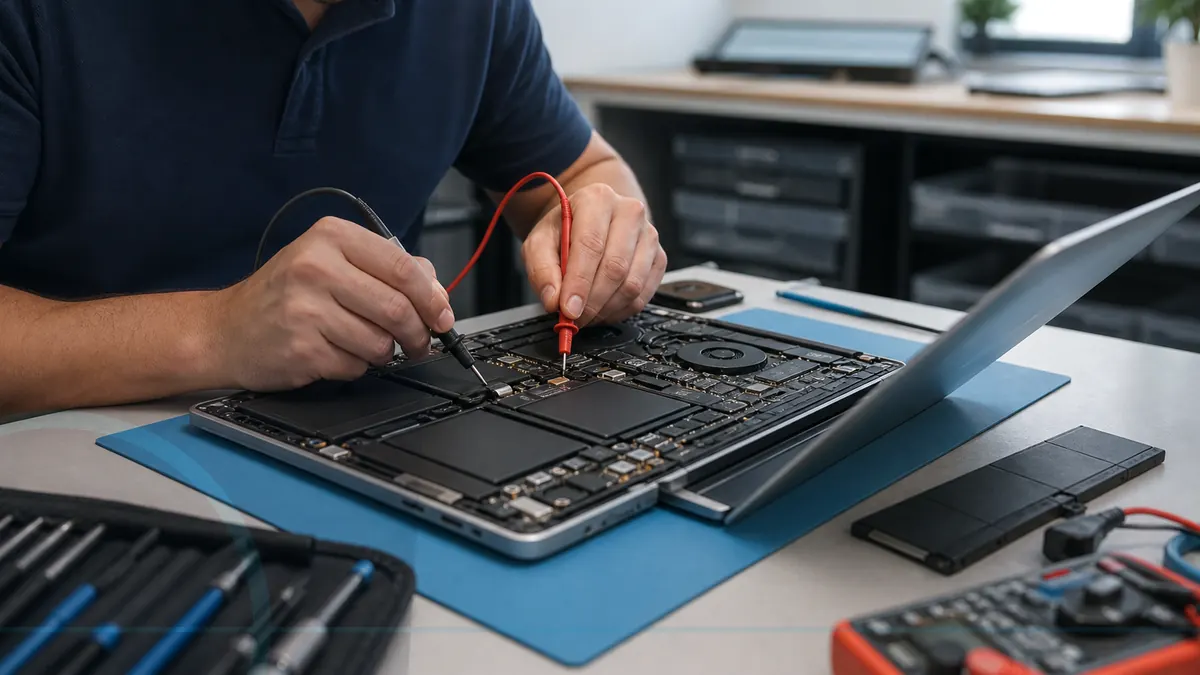
Protect important files before resets, storage work, or repeated startup attempts. Compare the complete repair—including parts and hidden-damage risk—with a suitable replacement.
When a professional diagnosis makes sense
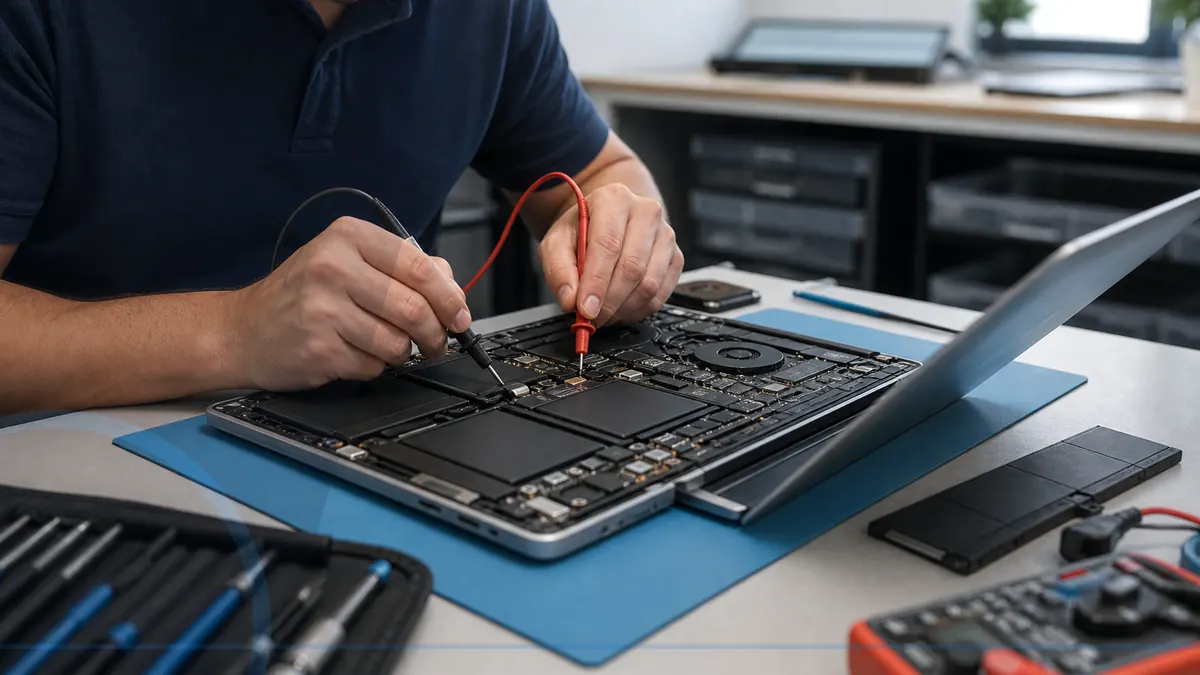
Arrange diagnosis when charging, display, hinge, heat, battery, or startup symptoms return; when the case or battery is physically unsafe; or when model-specific parts and hidden damage must be evaluated. Bring the correct power adapter and the exact model information.
For hands-on or remote help, explore the service options related to this issue, or browse the Help Center for another guide.