Start with the pattern, not a guess
Data preservation comes before making the computer boot. If storage clicks, disappears, reports errors, or contains the only copy of important files, repeated restarts and repair utilities may increase risk.
Practical checks and decisions
Work from observation to one controlled change at a time. Stop when the next step could risk data, accounts, electrical safety, or additional hardware damage.
Try one known-good cable and another computer
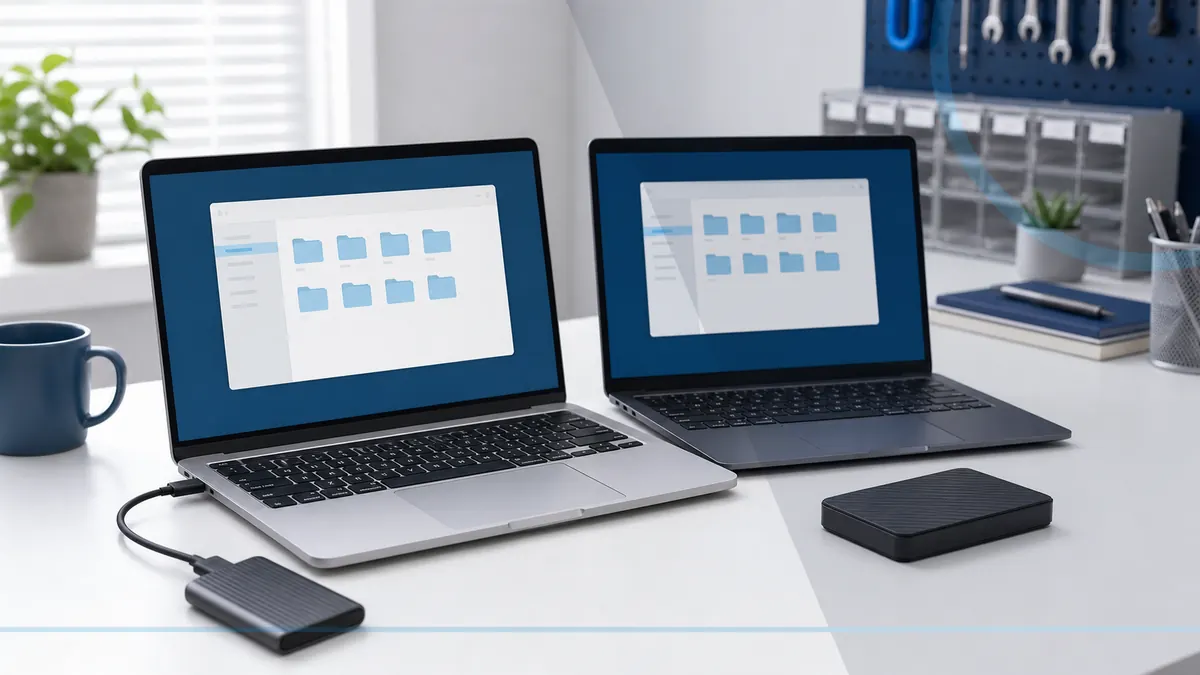
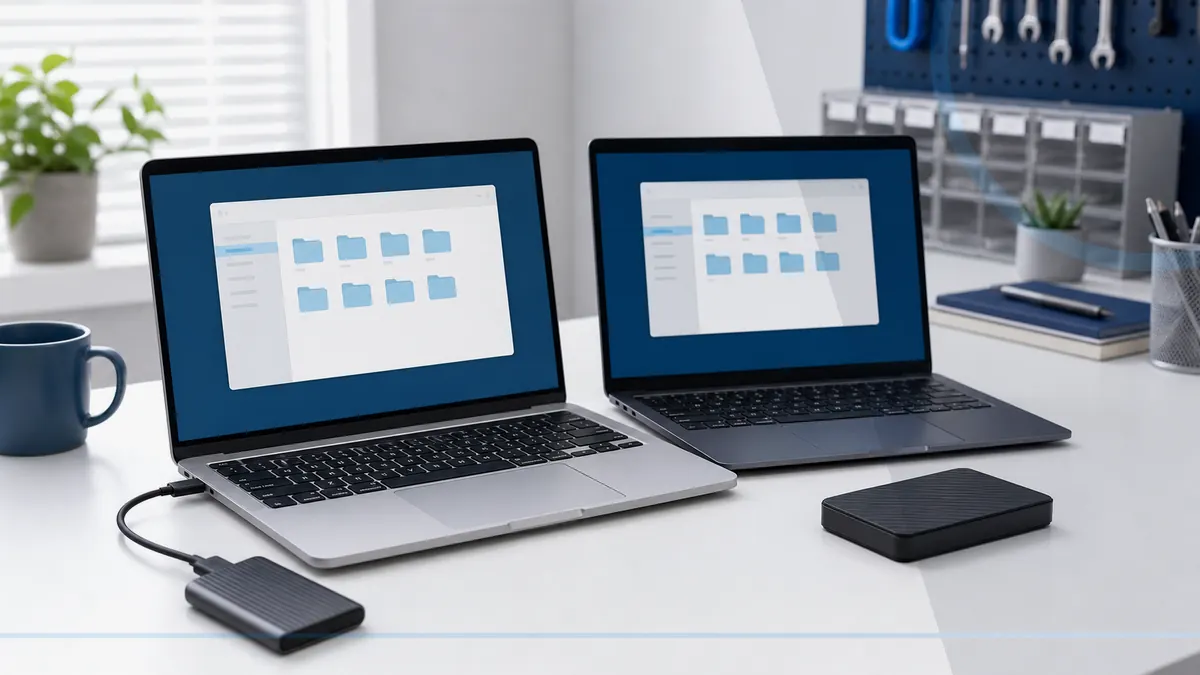
Identify the only original copy before changing storage or starting a transfer. When the source is stable, create an independent copy and keep the original untouched until verification is complete.
Stop if the drive clicks, scrapes, smells, or repeatedly spins down
Compare file counts, recent folders, dates, and the types of data that matter most. Synchronization status alone does not prove that files are complete, readable, or recoverable.
Do not format a drive that contains needed data
Stop when a drive clicks, scrapes, disappears, reports the wrong capacity, or repeatedly disconnects. Formatting, initialization, repair utilities, and repeated power cycles can reduce recovery options.
Decide whether the files justify professional recovery
Finish with a restore test: open representative files from the destination or backup and confirm folder structure. Do not erase or retire the old device until the new copy has been used successfully.
When a professional diagnosis makes sense
Ask for help before formatting, initializing, repeatedly restarting, or running repair tools against the only copy of important files. The safest path depends on the storage symptoms, prior attempts, and value of the data.
For hands-on or remote help, explore the service options related to this issue, or browse the Help Center for another guide.