Start with the pattern, not a guess
Start with the exact symptom, when it began, what changed, and what the device must still do for you. That context helps separate a temporary setting problem from failing hardware, unsafe activity, or a device that is no longer economical to repair.
Practical checks and decisions
Work from observation to one controlled change at a time. Stop when the next step could risk data, accounts, electrical safety, or additional hardware damage.
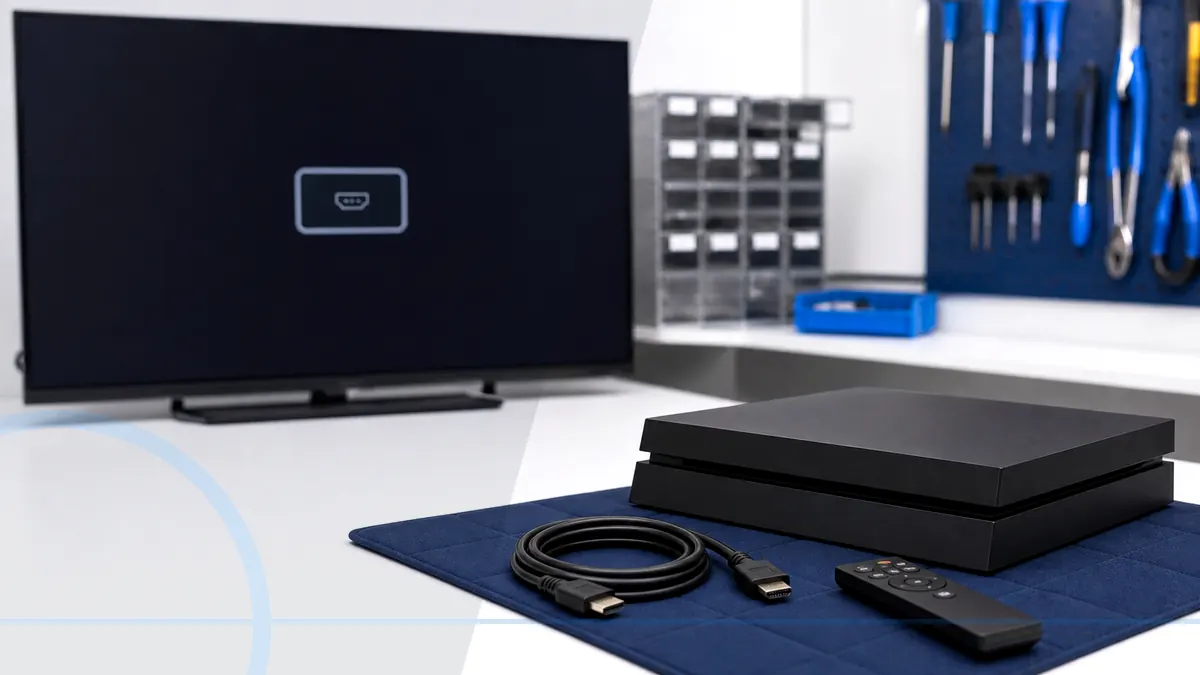
Test one known-good cable and television input without forcing the connector
Begin with one known-good cable, the correct display input, and the normal power setup. Record lights, sounds, controller response, charging behavior, and whether the symptom changes after safe-mode or handheld testing.
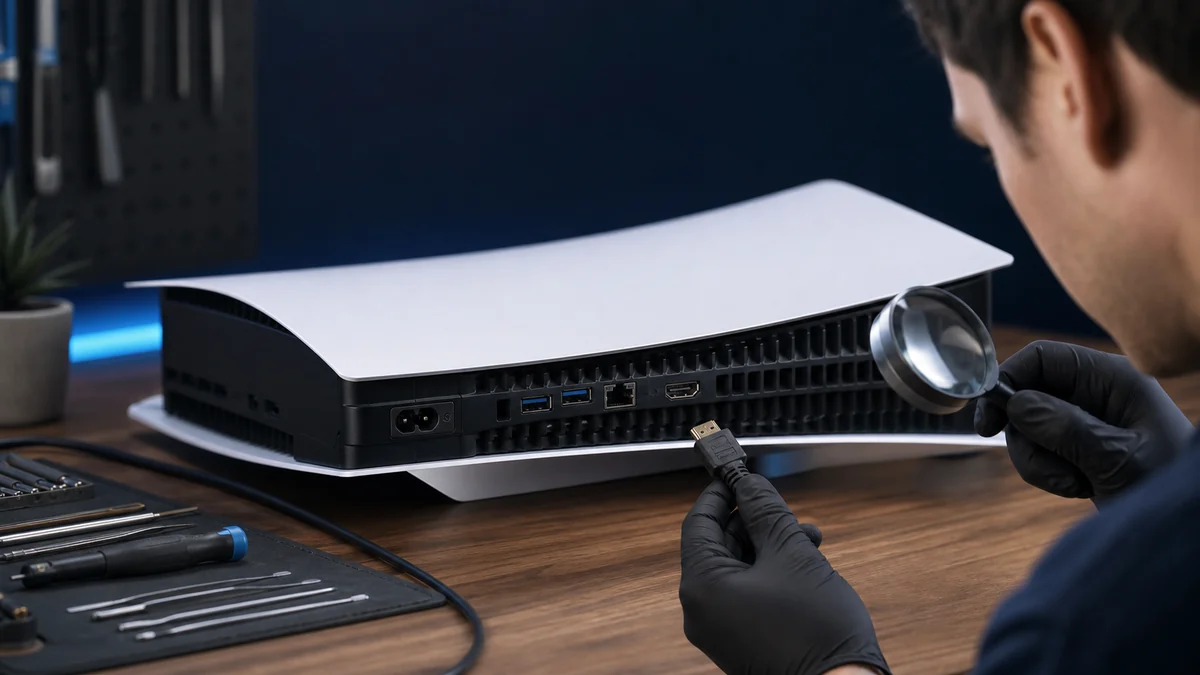
Inspect the port for looseness, bent contacts, or impact damage
Inspect connectors with the console powered down. A loose, bent, recessed, hot, or impact-damaged port should not be forced, shimmed, glued, or repeatedly moved to recover a temporary connection.
Notice the console light, sounds, and whether safe-mode video appears
Keep vents open and stop repeated play when there is extreme heat, odor, grinding fan noise, or shutdown. Surface cleaning may help airflow, but internal dust or component faults require hands-on inspection.
Stop moving the cable when the port feels loose and request diagnosis
Confirm the result with the same cable, display, game, dock, or charger long enough to rule out a temporary recovery. Saved data and account access should be discussed before invasive work.
When a professional diagnosis makes sense
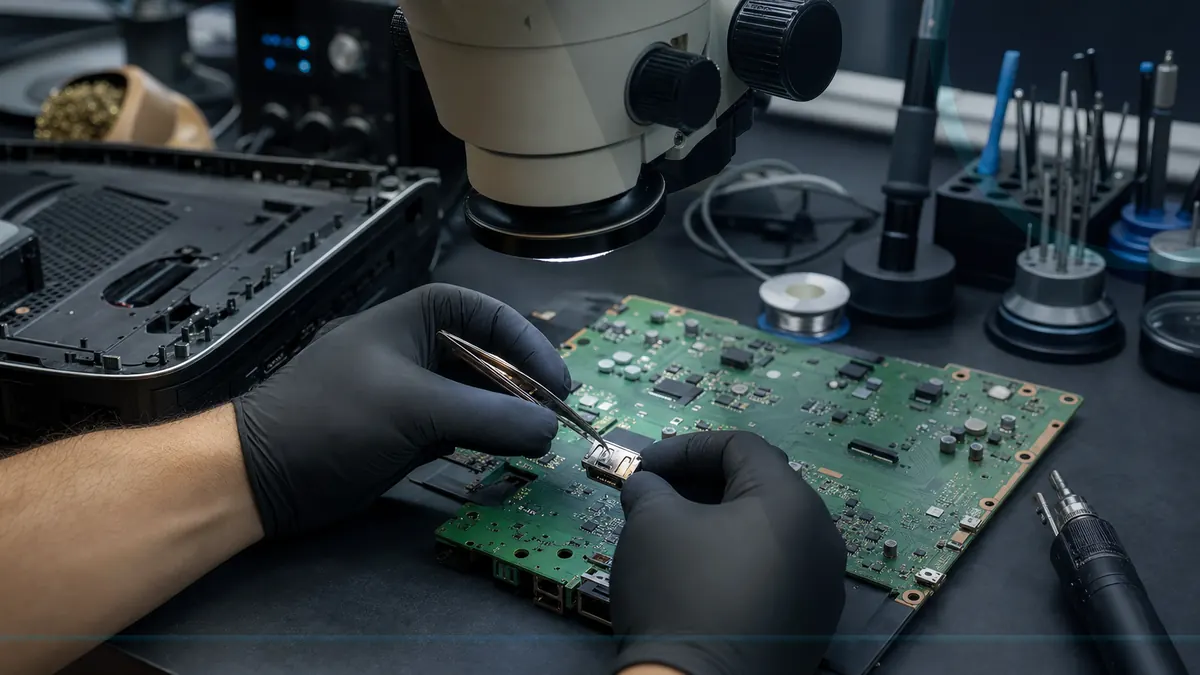
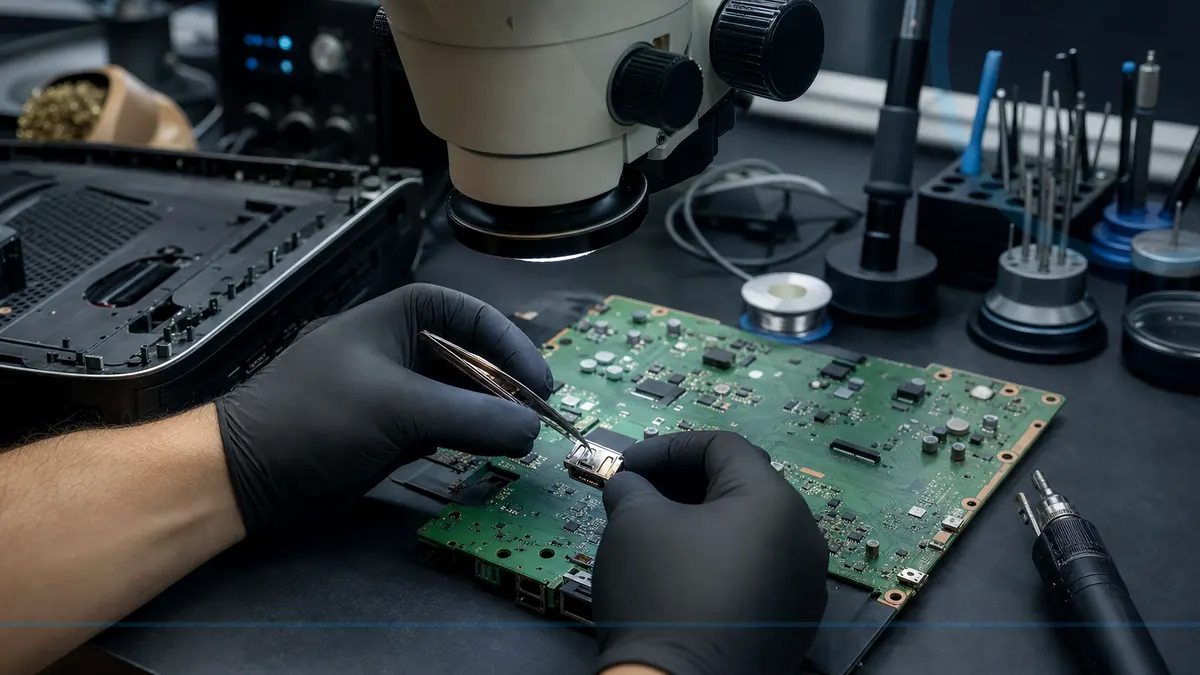
Arrange diagnosis when a port is loose or damaged, the console repeatedly overheats or shuts down, known-good accessories do not change the behavior, or opening the device would require board-level tools. Bring only the accessories connected to the symptom.
For hands-on or remote help, explore the service options related to this issue, or browse the Help Center for another guide.