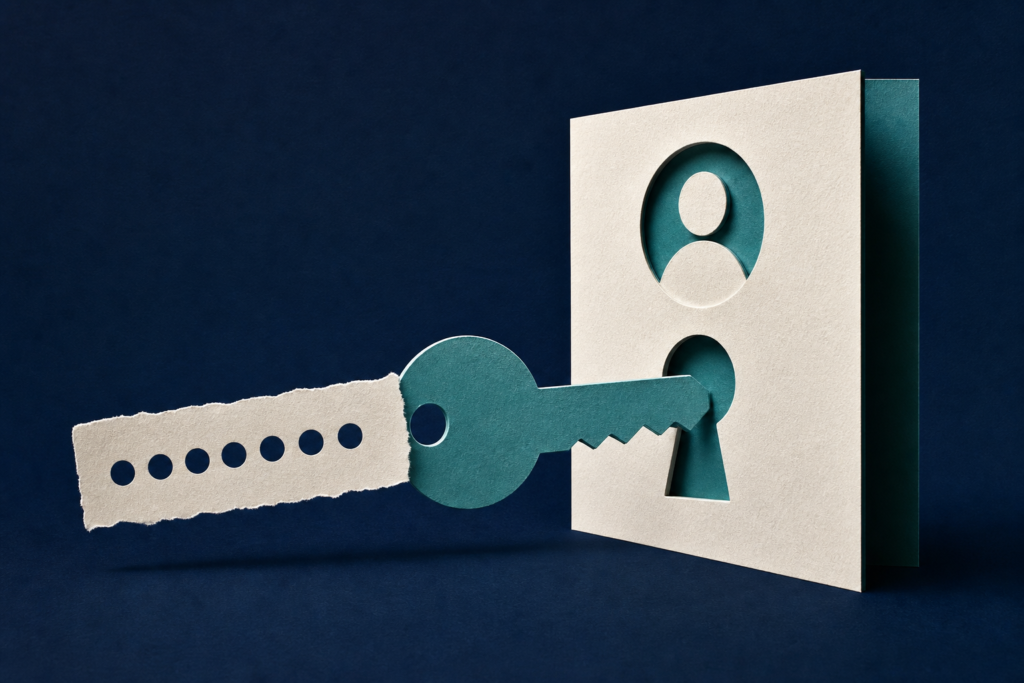
An unexpected code for a meeting, document, or chat may approve someone else’s sign-in. Check what the code is authorizing before you enter it.
In 60 seconds
- People using email, shared files, online meetings, or chat should pay attention.
- Ask whether you started the sign-in on the device or app named in the request.
- Do not enter or approve an unexpected code to open a file or join a meeting.
- If you approved one, review account activity and connected apps, sign out everywhere, and change your password.
Who should pay attention today
This scam can reach people who use personal or work accounts for email, shared files, online meetings, or chat. It may appear as an invitation to a password-protected meeting, a secure chat, or a shared document.
Malwarebytes says the message asks you to enter a short code on an account sign-in page. It may claim that the code will open a file or let you join a meeting. Instead, entering and approving it may sign in a scammer’s device to your account.
If you receive such a request, do not enter the code. First ask whether you were already trying to sign in to the device or app named in the message. If you were not, verify the request through a separate method you already trust.
Why a real sign-in page can still be part of the scam
Device code phishing misuses a legitimate sign-in feature. This feature helps devices with limited screens, such as some smart TVs, printers, and conference-room equipment, sign in through a browser on another device.
In the scam described by Malwarebytes, the scammer starts the sign-in and receives a short, temporary code. The scammer then sends that code to someone else through a fake meeting invite, document request, chat invitation, or supposed security check. When the recipient enters the code and approves the request, the scammer’s device may receive authentication tokens. These are digital passes that can provide access without revealing the account password.
The access depends on the app and the permissions granted. It may cover only one service, or it may include email, files, contacts, and other services. Multifactor authentication, or MFA, may not stop this. MFA is an extra sign-in check, but the person receiving the scam may complete that check while approving the scammer’s request.
Checking the web address alone may not expose the trick. Malwarebytes notes that an attack targeting a Microsoft account may use a genuine Microsoft device sign-in page. Some approval screens show the app requesting access, while others may not. The important question is what sign-in you are approving and who started it.
What to do if you already approved the request
If you entered the code and approved an unexpected sign-in, Malwarebytes advises checking recent account activity, connected apps, and listed devices for anything you do not recognize. Sign out everywhere and change the password.
A request may try to rush you by saying that an invitation, document, password, or account will expire soon. Malwarebytes also flags requests to move a conversation to another messaging app and complete a so-called security check. Pressure does not make the request legitimate.
Use the account provider’s normal settings and recovery pages rather than links in the message. If access or account details have changed, use the provider’s standard recovery process.
A short code is not automatically dangerous
The context matters. If you started signing in to a device you control, the code may be part of a normal process. If someone sent you the code as the key to a meeting, file, chatroom, or unexpected security check, stop instead.
The goal is to confirm what you are approving, not simply whether the page looks familiar. A genuine sign-in page can still be used for a sign-in started by someone else.
Does this affect me?
- Who may be affected
- People and organizations that use accounts for email, files, online meetings, or chat can encounter this scam.
- How to check
- Review any request that asks you to enter a code or approve a sign-in. Ask whether you started that sign-in on the named device or app.
- What to do
- If you approved an unexpected request, review recent activity, connected apps, and devices; sign out everywhere and change the password.
- What to avoid
- Do not enter a code sent to open a document, join a meeting, enter a chat, or complete an unexpected security check. Do not rely on the sign-in page’s address alone.
Common questions
Can multifactor authentication stop device code phishing?
Not always. Malwarebytes says the targeted person may complete the extra sign-in check themselves while approving the scammer’s sign-in. That approval can give the scammer access even without the password.
What if the sign-in page is a real Microsoft page?
A real page can still be part of the scam. Malwarebytes says scammers may direct people to a genuine Microsoft device sign-in page. The key question is whether you started the sign-in on the device or app involved.
What should I do after entering the code?
Check recent account activity, connected apps, and devices for anything unfamiliar. Sign out everywhere and change the password, using the account provider’s normal recovery steps if access has changed.
Primary source
This article is based on Malwarebytes, “How device code phishing gives scammers access to your account,” published September 23, 2026: https://www.malwarebytes.com/blog/how-to/2026/09/how-device-code-phishing-gives-scammers-access-to-your-account Read the complete original source.
Concerned this may affect your computer or account?
Bring the exact alert, device, product, and timeline. Leon will help separate urgent action from noise.
Article history: Published Sep 23, 2026 at 3:30 pm EDT. Updates and corrections are noted here when material facts change.