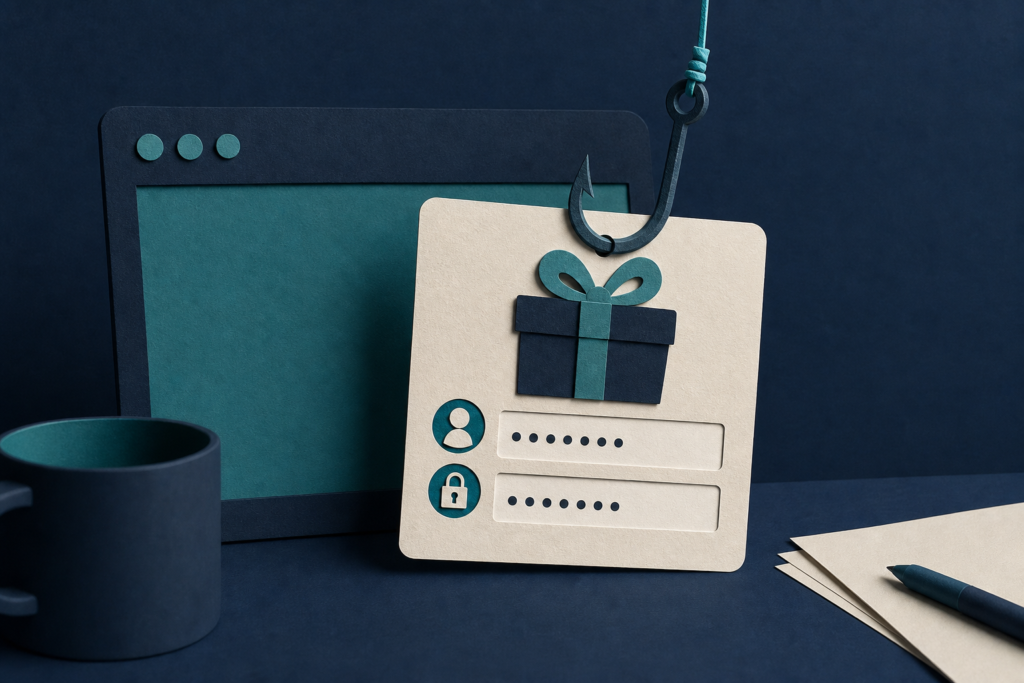
Microsoft says the EvilTokens service tricked people into approving attacker-controlled sign-ins with device codes. Do not enter a code from an unexpected message, even if the link opens Microsoft’s real sign-in page.
In 60 seconds
- Microsoft says EvilTokens compromised more than 12,000 inboxes across over 10,000 organizations.
- Care if you use a Microsoft work or school account and receive an unexpected device-code request.
- Do not enter a code from an unexpected email, attachment, text, or webpage.
- If you entered one, contact your account administrator immediately and report what happened.
Who should care and what to do today
This matters to people and organizations using Microsoft work or school accounts, especially anyone who receives an unexpected request to enter a device code. Microsoft says it observed EvilTokens activity in industries including wholesale distribution, construction, financial services, real estate, higher education, and healthcare. It also reported activity in the United States, Canada, the United Kingdom, Australia, India, and France.
You may be facing this type of scam if a message asks you to open a link or attachment and then enter a short code at a Microsoft sign-in page. The message could mention an expiring password, an invoice, a shared file, a document signature, or a business proposal.
If you did not start the sign-in yourself, do not enter the code or approve the request. Close the page and report the message through your usual work or school process. If you already entered the code, contact your account administrator immediately and explain exactly what happened.
How device-code phishing works
Microsoft describes device-code phishing as the misuse of a real sign-in feature. Device-code sign-in is designed for equipment such as smart TVs, printers, Teams devices, and conference equipment that cannot show a normal sign-in screen. The device displays a short code, and the user enters it in a browser on another device.
In the scam, the attacker starts the sign-in request and places the code inside a phishing message. The victim may then be sent to the real Microsoft sign-in website. That site is genuine, but entering the code can approve the attacker’s session rather than the victim’s intended device.
The victim may also be asked for a password and multifactor authentication, or MFA. MFA is an extra sign-in check, such as an app approval or security key. Microsoft says EvilTokens could obtain a sign-in token, which is temporary proof that an account has authenticated. Attackers could then read email, create hidden inbox rules, send messages from the account, and search for valuable information.
Why ordinary work messages can be part of the lure
Microsoft calls EvilTokens a phishing-as-a-service platform. That means it supplied other criminals with ready-made tools for running phishing campaigns. Microsoft says the service offered many message and webpage templates, used artificial intelligence to tailor lures, and helped examine compromised inboxes for valuable targets.
The reported themes included invoices, requests for proposals, shared files, cloud services, password notices, document signing, voicemail, and electronic fax messages. A message that fits your job or arrives during a busy workday can still be a trap. The key question is whether you expected to sign in to a device that uses a code.
Microsoft says EvilTokens activity compromised more than 12,000 inboxes in over 10,000 organizations worldwide. Microsoft’s Digital Crimes Unit, working with partners, facilitated a coordinated disruption of infrastructure used to operate the service. The broader device-code phishing technique still calls for the same basic response: do not approve an unexpected sign-in.
What account administrators should check
Microsoft recommends blocking device-code sign-ins wherever they are not needed. If an organization must use them for specific Teams devices, Microsoft says administrators should limit the exception to those device accounts.
Administrators should review alerts for unusual device-code sign-ins, new device registrations, suspicious inbox rules, and unusual email access. Microsoft also recommends anti-phishing controls, link scanning, sign-in risk policies, and phishing-resistant sign-in methods such as security keys or passkeys where available.
If a user may have approved a fraudulent code, Microsoft recommends following its compromised-account guidance. Depending on the situation, that can include temporarily disabling the account, revoking sign-in sessions, forcing a new sign-in, and checking for hidden inbox rules or other account changes. An administrator should handle these steps because they can interrupt normal work.
Does this affect me?
- Who may be affected
- People and organizations using Microsoft work or school accounts who receive unexpected device-code requests or related phishing messages.
- How to check
- Review messages for urgent requests to enter a code, open a file, or sign in through an unexpected link; ask your account administrator if unsure.
- What to do
- Do not enter the code or approve the request; report the message, and contact your account administrator immediately if you already entered it.
- What to avoid
- Do not approve an unexpected sign-in, reply to the sender, or assume a real Microsoft sign-in page proves the original request was legitimate.
Common questions
Does multifactor authentication stop this scam?
Not always. Microsoft says the attack abuses the device-code sign-in process, so a victim may approve the attacker’s request while completing a normal sign-in and MFA check. Phishing-resistant methods such as security keys or passkeys can provide stronger protection.
What should I do if I entered the code?
Contact your work, school, or account administrator immediately and say you may have approved a device-code sign-in. Microsoft recommends response steps that can include disabling the account, revoking sign-in sessions, forcing a new sign-in, and checking for hidden inbox rules. Do not wait for a suspicious email to appear.
How can I tell whether a device-code request is legitimate?
Ask whether you started a sign-in on a device that actually needs a code, such as certain Teams or conference devices. If the request came from an unexpected message or urges quick action, do not use it. Microsoft also says sign-in prompts should clearly identify the application being authenticated.
Primary source
This article is based on Microsoft’s Security Blog report, “Unmasking EvilTokens: Getting to the root of device code phishing,” published September 22, 2026: https://www.microsoft.com/en-us/security/blog/2026/09/22/unmasking-eviltokens-getting-to-the-root-of-device-code-phishing/. Claims about EvilTokens, affected organizations, and recommended administrator controls come from that report. Practical user advice is general guidance based on the described attack. Read the complete original source.
Concerned this may affect your computer or account?
Bring the exact alert, device, product, and timeline. Leon will help separate urgent action from noise.
Article history: Published Sep 22, 2026 at 1:22 pm EDT. Updates and corrections are noted here when material facts change.