Start with the pattern, not a guess
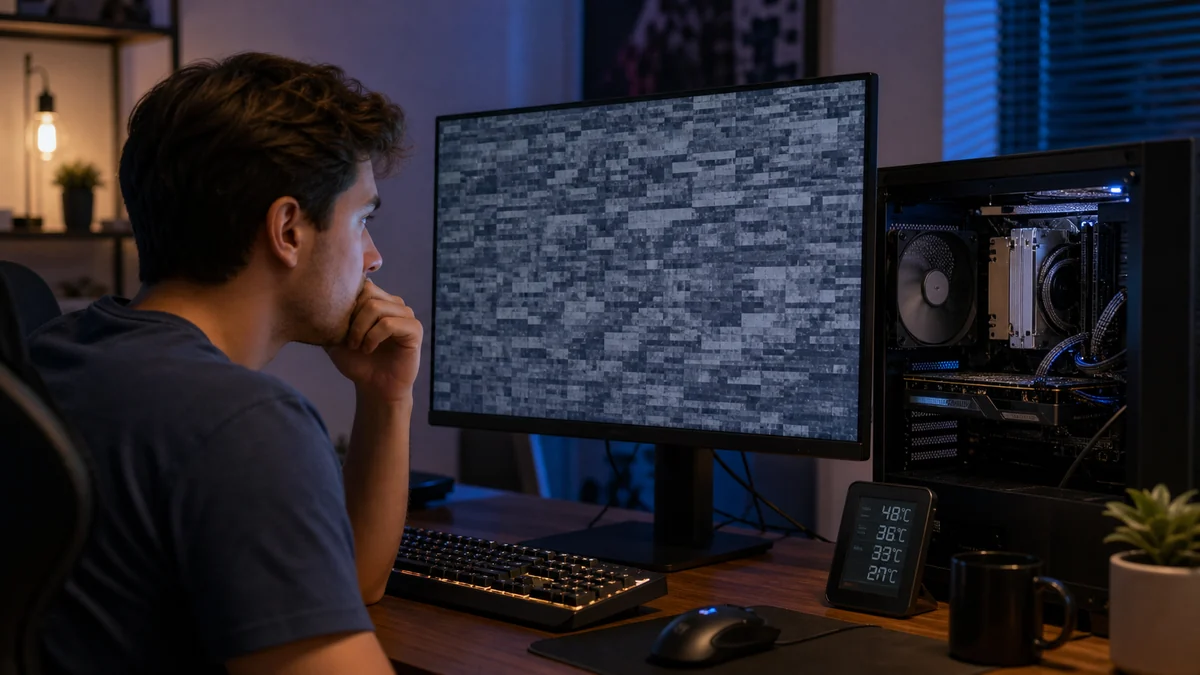
Gaming problems are easiest to diagnose when you record the game, settings, temperatures, error, and whether the issue appears under load or at idle. Frame rate, crashes, noise, and shutdowns can come from different hardware or software causes.
Practical checks and decisions
Work from observation to one controlled change at a time. Stop when the next step could risk data, accounts, electrical safety, or additional hardware damage.
Compare idle and load temperatures
Use the same game, resolution, graphics settings, and workload when comparing results. Record temperatures, fan behavior, error messages, and the time between launch and failure.
Check fan operation and airflow direction
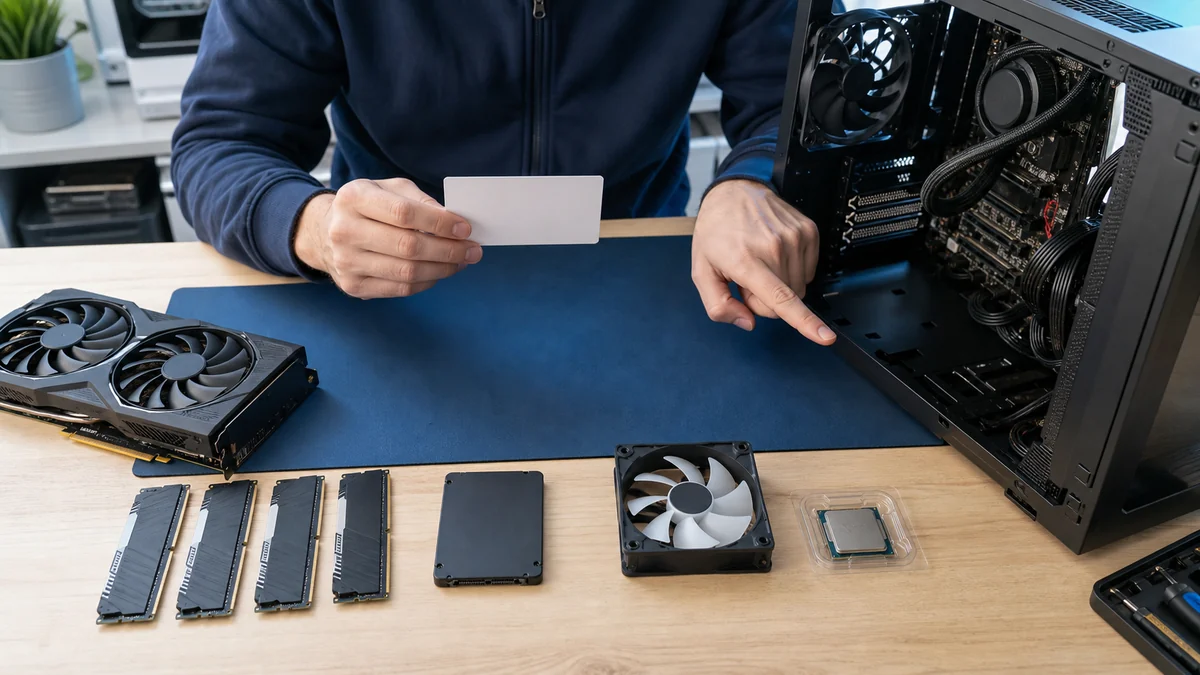
Change one power, cable, driver, setting, or component variable at a time. Recent upgrades and loose internal connections matter, but replacing the graphics card first can miss memory, storage, cooling, or power-supply faults.
Clean safely without overspinning fans
Stop testing when there is unusual heat, an electrical smell, grinding, arcing, or repeated hard shutdowns. More stress testing can turn a diagnosable fault into additional component or data damage.
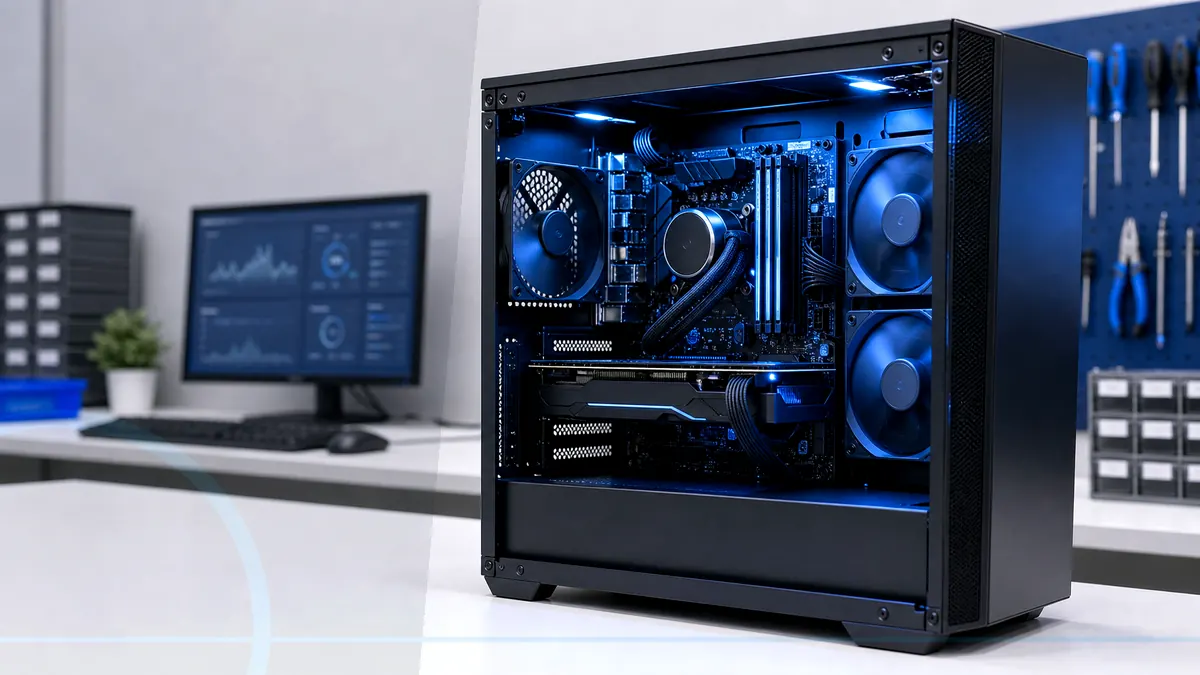
Do not assume a larger case or more fans automatically fixes the layout
After a change, test both idle operation and the workload that previously failed. Stability across more than one session is stronger evidence than a single successful launch.
When a professional diagnosis makes sense
Arrange diagnosis when crashes or shutdowns return under a repeatable load, temperatures or electrical behavior are unsafe, recent component changes cannot be isolated, or the next test requires known-good parts. Bring the game names, settings, temperatures, error history, and hardware list.
For hands-on or remote help, explore the service options related to this issue, or browse the Help Center for another guide.